

Converting Excel (XLS/XLSX) to ODS (OpenDocument Spreadsheet) sounds easy—upload, click, done. But if you care about formula fidelity, data validation, sheet names, print areas, and privacy, there’s a right way to do it. This AdSense-friendly guide explains what ODS is, why teams choose it over native Excel formats, and gives you clear, step-by-step instructions to convert spreadsheets to ODS directly on our website (desktop and mobile). You’ll also get pro tips for formatting, compatibility, batch conversion, troubleshooting, and a quick checklist to keep every file clean and collaboration-ready.
What Is ODS (OpenDocument Spreadsheet)?
ODS stands for OpenDocument Spreadsheet, the open-standard workbook format maintained by OASIS and used natively by LibreOffice Calc and Apache OpenOffice Calc. Like XLSX, ODS is based on a ZIP package of XML files, but it’s vendor-neutral and designed for long-term accessibility and interoperability.
Key characteristics of ODS:
- Open standard: No vendor lock-in; ideal for public sector and open-source workflows.
- Great with LibreOffice/OpenOffice: Native editing experience in Calc with stable styles and functions.
- Portable & future-proof: Well-documented spec that supports archiving and long-term access policies.
Why Convert Excel (XLS/XLSX) to ODS?
Even though Excel is everywhere, there are strong reasons to deliver or maintain your workbook in ODS:
- Team requirements & policy compliance
Public agencies, universities, and open-source teams often prefer open standards. If your collaborators live in LibreOffice, ODS avoids subtle glitches you might see with XLSX round-trips. - Editing stability in Calc
Calc opens XLSX, but complex sheets (custom number formats, some conditional rules, niche functions) can behave better once saved as native ODS for ongoing editing. - Cost-friendly collaboration
ODS works across platforms—Windows, macOS, Linux—without requiring Office licenses. - Archiving & longevity
Because the format is open, it’s a safer bet for long-term storage where software stacks may change. - Cross-tool portability
If your workflow mixes Excel, LibreOffice, and web editors, ODS can be the “neutral zone” for predictable editing outside Microsoft 365.
When to keep XLSX: If all stakeholders use Excel and rely on Excel-specific features (e.g., certain dynamic array functions, advanced Power Query connections, or VBA), stick with XLSX for your working master. You can provide an ODS export for external recipients who require it.
Before You Convert: Best-Practice Prep in Excel
- Use consistent, simple formatting: Prefer cell styles over ad-hoc font changes.
- Check formulas: Most standard functions convert cleanly. If you rely on Excel-only functions (e.g., some dynamic arrays), consider adding a “Values” copy of critical outputs for recipients.
- Named ranges & tables: Keep names simple (no spaces/special chars).
- Data validation & dropdowns: Use basic validation types; exotic custom formulas may need a manual review after conversion.
- Charts & conditional formatting: Simple rules and standard chart types survive best.
- PivotTables: Basic pivots convert; very advanced options may need verification in Calc.
- Print areas & page setup: Set these in Excel so they carry over clearly.
Step-by-Step: Convert Excel to ODS on Our Website (Desktop & Mobile)
Our Excel → ODS Converter runs in your browser—no install, any modern device—and aims to preserve formulas, formats, and sheet structure where possible.
Desktop (Windows, macOS, Linux)
- Open the Excel → ODS tool on our website.
From the homepage, go to Tools → Excel to ODS (or search “Excel → ODS”). - Upload your workbook.
Click Choose File (or drag & drop) and select your.xlsxor.xls. If you have multiple files, convert them one by one for clean outputs. - Choose options (if shown):
- Preserve formulas (recommended): Keeps standard formulas instead of flattening to values.
- Keep formats & styles: Retains number formats, colors, borders where possible.
- Include hidden sheets? Decide whether to export hidden content.
- Named ranges & print areas: Preserve for intact reports.
- Protection: If sheets/workbook are protected in Excel, consider removing protection before upload if you plan to edit in Calc.
- Convert.
Click Convert to ODS. The tool processes your workbook into an ODS file. - Download & verify.
Save asReport_Q4_2025-10-17.ods. Open in LibreOffice Calc and quickly test:
- Totals and key formulas (SUM, VLOOKUP/XLOOKUP equivalents, IFs, date math).
- List validations, dropdowns, and filters.
- PivotTables and charts layout.
- (Optional) Re-convert if needed.
If a chart or conditional format isn’t ideal, simplify in Excel and convert again, or fine-tune it natively in Calc.
Mobile (iPhone/iPad/Android)
- Open the tool in your mobile browser.
Go to Tools → Excel to ODS. - Upload from device/cloud.
Pick the Excel file from Files, iCloud Drive, or Google Drive. - Convert & Save.
Tap Convert to ODS, then Download. Open the result in Collabora Office (LibreOffice for mobile) or store it to edit later on desktop. - Quick sanity check.
Verify visible totals and a sample of formulas. For deep edits, move to desktop Calc.
Maintaining Fidelity: Formulas, Formats & Features
Formulas
- Standard math, text, and date functions convert well.
- If you use Excel-only functions, consider helper columns with equivalent logic or “Values” snapshots for final recipients.
Number formats
- Keep formats simple (
#,##0.00, date/time patterns). Locale-specific formats may need a quick review in Calc.
Tables & named ranges
- Tables become regular ranges with formatting; named ranges usually survive. Keep range names simple.
Conditional formatting
- Common rules (greater/less than, color scales) map better than advanced icon sets. Review the result in Calc.
Charts & sparklines
- Standard charts typically convert; check axis formats and labels. Sparklines may not convert as native Calc sparklines.
PivotTables
- Basic pivots often carry; advanced options or custom measures might require re-building in Calc.
Data validation
- List and basic validation work. Complex custom formulas may need re-creation.
Power Query/VBA/Macros
- Power Query connections and VBA do not translate to ODS. For recipients who don’t need automation, provide a clean ODS with computed results.
Privacy & Security (Online Conversion)
- HTTPS only. Always ensure the lock icon is present.
- Short retention. We automatically purge uploads after a short window (see the converter’s Privacy Policy on the tool page for details).
- Sensitive data: Don’t upload confidential workbooks unless your policy allows external processing. For restricted data, convert locally.
- Keep the source. Store your original XLSX/XLS so you can re-export or troubleshoot later.
Troubleshooting: Common Excel → ODS Issues (and Fixes)
1) Formulas show errors in ODS
- Replace Excel-only functions with portable equivalents, or add a “Values” sheet for critical outputs.
- Check named ranges; simplify names and ensure they point to valid ranges.
2) Numbers or dates display oddly
- Reapply number formats in Calc (e.g., set locale, choose standard patterns).
- Avoid overly custom formats in Excel before converting.
3) Conditional formatting looks different
- Use simpler rules in Excel (basic comparisons) before conversion, then adjust in Calc if needed.
4) Charts misaligned or styles changed
- Switch to common chart types in Excel (column/line/pie) and re-convert.
- In Calc, adjust axis ranges and labels after opening the ODS.
5) PivotTables lose some settings
- Rebuild the pivot in Calc using the same source range. Consider adding a “Pivot-Values” sheet for quick sharing.
6) Data validation lists missing
- Confirm the validation referenced a simple range (not an external source). Re-apply list validation in Calc if needed.
7) Workbook protection blocks edits
- Unprotect sheets/workbook in Excel before converting if you plan to edit in Calc.
Batch Converting Excel to ODS (Time-Saver)
- LibreOffice headless (advanced):
soffice --headless --convert-to ods *.xlsxRun in a folder to convert many files at once. Then spot-check: totals, a few formulas, and print areas. - Automation:
Use macOS Shortcuts, Windows PowerShell, or CI tasks to watch a folder and convert new XLSX files to ODS automatically.
Naming, Versioning & Delivery
- Readable filenames:
Budget_DeptA_v4_2025-10-17.ods - Version notes: Mention the version in your email/chat (“Attaching ODS v4 for Calc users”).
- Mixed ecosystems: If some teammates use Excel and others use LibreOffice, keep both formats in shared storage (
/XLSXand/ODS) to avoid conflicts.
Quick Pre-Send Checklist
- ✅ Opens cleanly in LibreOffice Calc
- ✅ Key totals & formulas compute as expected
- ✅ Number/date formats look right for your locale
- ✅ Conditional formatting & charts acceptable
- ✅ PivotTables usable or rebuilt as needed
- ✅ Print areas and sheet names correct
- ✅ Clear filename with date/version
- ✅ Sensitive data handled per policy
FAQs: Excel → ODS
1) Will all my formulas work in ODS?
Most standard formulas do. Excel-specific or very new functions may not—use helper columns, portable equivalents, or provide values.
2) Do PivotTables convert?
Basic pivots usually do, but advanced settings may change. Re-create the pivot in Calc if necessary.
3) Will my charts look the same?
Common chart types convert best. Verify axes, labels, and colors in Calc after conversion.
4) What about macros (VBA) or Power Query?
They don’t carry into ODS. Provide a static ODS (values) for recipients who don’t need automation, or keep the XLSX for macro users.
5) Is online conversion safe?
We use HTTPS and short retention. For confidential workbooks, convert locally and follow your organization’s policy.
How to Convert Excel to ODS on Our Website (Step-By-Step Summary)
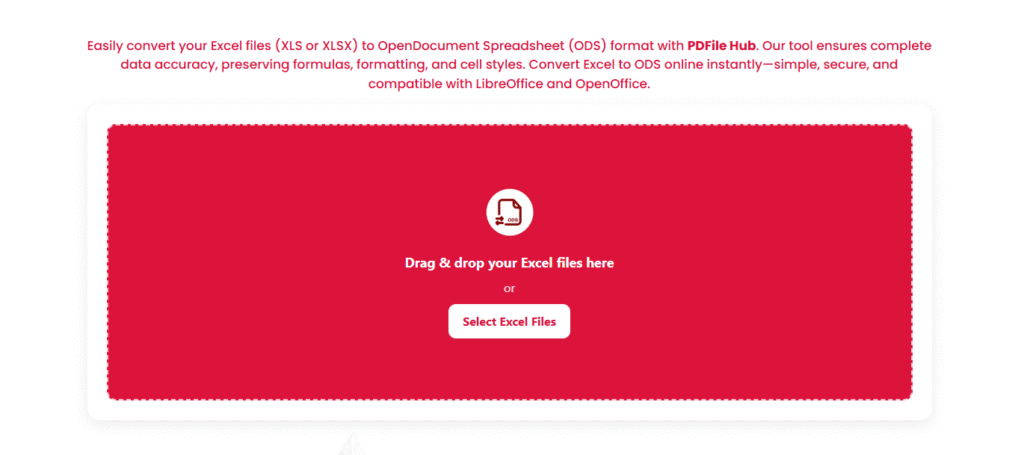
- Open Excel To ODS on our site.
- Upload the
.xlsx/.xls. - Select Preserve formulas, Keep formats, and desired options.
- Click Convert to ODS.
- Download and open in LibreOffice Calc to verify.
- Rename clearly (e.g.,
Sales-YTD_v2_2025-10-17.ods) and share.
Suggested Title (SEO-Friendly)
Convert Excel to ODS Online — Safe, Accurate & Free | Preserve Formulas, Formats & Sheets (2025 Guide)
Optional: FAQ Schema (Copy-Paste)
<script type="application/ld+json">
{
  "@context":"https://schema.org",
  "@type":"FAQPage",
  "mainEntity":[
    {
      "@type":"Question",
      "name":"What is ODS and why convert from Excel?",
      "acceptedAnswer":{
        "@type":"Answer",
        "text":"ODS (OpenDocument Spreadsheet) is an open-standard format used by LibreOffice/OpenOffice. Converting from Excel improves compatibility with open-source tools, supports open-format policies, and stabilizes editing for teams working in Calc."
      }
    },
    {
      "@type":"Question",
      "name":"How do I convert Excel to ODS on this website?",
      "acceptedAnswer":{
        "@type":"Answer",
        "text":"Open the Excel → ODS tool, upload your XLSX/XLS, choose options like Preserve formulas and Keep formats, click Convert to ODS, then download and verify the result in LibreOffice Calc."
      }
    },
    {
      "@type":"Question",
      "name":"Will formulas, charts, and pivots remain intact?",
      "acceptedAnswer":{
        "@type":"Answer",
        "text":"Most standard formulas and simple charts migrate well. Advanced Excel-only features may need adjustment in Calc. Basic PivotTables usually convert; complex ones may need to be rebuilt."
      }
    }
  ]
}
</script>
Final Thoughts
Excel to ODS is straightforward when you prepare sheets with clean styles, portable formulas, and simple validations. For teams working in LibreOffice/OpenOffice or following open-standard policies, ODS is the right target. Use our website’s converter for a fast, secure export, then run the quick checklist in Calc. With a few best practices—consistent formats, clear naming, and verification—you’ll deliver ODS workbooks that calculate correctly, look professional, and collaborate smoothly across tools and platforms.