

Exporting Excel to PDF is the fastest way to share spreadsheets that look the same on every device—no broken formulas, no missing fonts, and no accidental edits by recipients. Done right, you’ll preserve layout, page numbers, and charts while keeping file size reasonable. This guide shows when Excel→PDF makes sense, how to get pixel-perfect pages from Excel itself, and a step-by-step workflow in PDFileHub for quick online conversion. We’ll also cover page setup (margins, scale, print area), fonts/embedding, images, hyperlinks, accessibility, compression, and troubleshooting common pitfalls (cut-off columns, giant files, fuzzy charts).
When (and why) to convert Excel to PDF
Consistency & control. PDF freezes layout so totals, headers, and charts appear exactly as intended—great for invoices, statements, dashboards, schedules, quotes, and reports.
Compatibility. Everyone can open a PDF on web and mobile. No worries about Excel versions, add-ins, or protected cells.
Security & sharing. PDFs are easier to watermark, password-protect, and sign. Recipients can’t easily alter numbers.
When not to convert. If your recipient needs to edit formulas or sort/filter data, send XLSX/CSV as well. If a portal needs raw data, PDF alone won’t cut it.
Before you export: make your sheet “print aware”
Think like a publisher. PDFs are pages; Excel is a grid. Bridge that gap with these essentials:
1) Decide the page size and orientation
- A4/Letter are standard for documents.
- Landscape suits wide tables and dashboards; Portrait for lists/forms.
- Excel: Page Layout → Size (A4/Letter) and Orientation (Portrait/Landscape).
2) Set margins and scaling
- Narrow margins maximize columns without looking cramped.
- Use Scale to Fit → Width = 1 page (and Height = Automatic) to fit all columns on each page. Avoid shrinking text too much; if it drops under ~9–10 pt, adjust columns or split across pages.
3) Define the print area
- Select the exact range → Page Layout → Print Area → Set Print Area.
- This prevents stray notes or helper columns from leaking into the PDF.
4) Repeat headers on each page
- Page Layout → Print Titles → set Rows to repeat at top (e.g.,
$1:$1). - Your column headings appear on every page—critical for multi-page tables.
5) Show gridlines or not
- Professional reports usually hide gridlines and use borders sparingly.
- Page Layout → Sheet Options → Gridlines (Print) to toggle.
6) Page breaks you control
- View → Page Break Preview to drag blue lines where pages should split—great for keeping sections intact.
7) Footer polish
- Insert → Header & Footer (or Page Setup) to add page numbers, report name, date, or a confidential note.
8) Fonts (avoid substitution)
- Use widely available fonts or embed-friendly ones (e.g., Calibri, Arial, Inter).
- For brand fonts, ensure they’re installed; otherwise, exports on another machine may substitute and nudge layout.
9) Charts & images
- Keep charts within the print area.
- Right-click chart → Size and Properties → lock aspect ratio; avoid tiny charts that will rasterize poorly.
Export to PDF directly from Excel (Desktop)
- Finish the prep above.
- File → Save As / Export → Create PDF/XPS (Windows) or File → Save As → PDF (Mac).
- Options…
- Optimize for: Standard (higher quality) or Minimum size (smaller PDF).
- Publish what: Selection, Active sheet(s), or Entire workbook.
- Ignore print areas (unchecked if you set one).
- Open file after publishing (to review immediately).
- Save and open the PDF. Check page count, header row repetition, chart clarity, and that totals aren’t cut off.
Tip (multiple sheets): Create a cover sheet and order sheets logically. In File → Print, choose Entire workbook to export all sheets in one PDF with each sheet starting on a new page.
Convert Excel to PDF with PDFileHub (Desktop & Mobile)
When you’re on the go or don’t want to fuss with page setups, PDFileHub’s converter gives you a simple pipeline that respects layout.
Desktop (Windows/Mac/Linux)
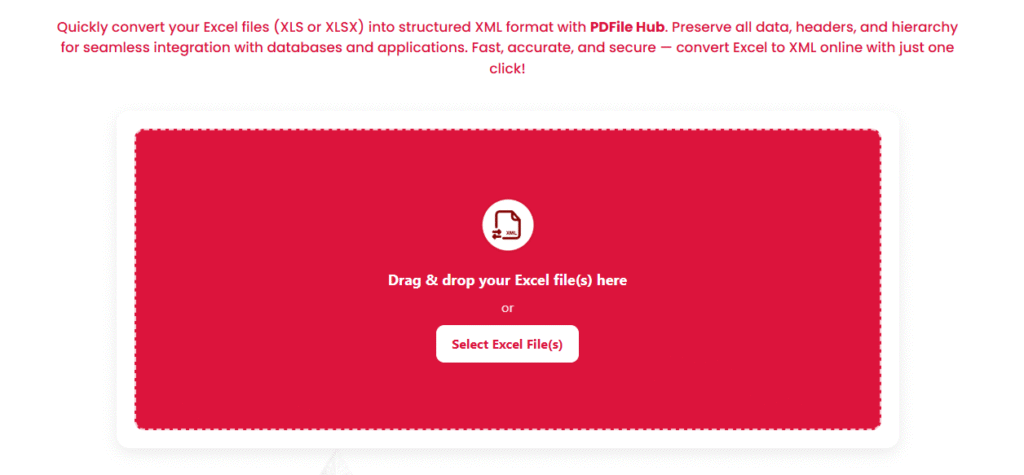
- Open PDFileHub → Excel to PDF.
- Upload XLSX/XLS (and any linked files if asked).
- Options (if available):
- Sheets to include: pick specific sheets or all.
- Size & orientation: Letter/A4, Portrait/Landscape.
- Fit to width: keep columns on a page; set a minimum font size safeguard if offered.
- Margins & headers: default to Narrow + repeat top row.
- Convert and Download the PDF.
- Review the output (page count, header repeats, charts).
Mobile (iOS/Android)
- In the mobile browser open PDFileHub → Excel to PDF.
- Upload from Files/Drive/iCloud.
- Choose Fit to 1 page width for wide tables; Landscape if needed.
- Convert → Download and preview in your PDF viewer.
Keep it sharp: text, charts, and images
- Text crispness. If text looks fuzzy, you likely over-scaled. In Excel, widen columns and reduce scaling, or split across pages.
- Charts clarity. Increase chart size in Excel, export again. Avoid overly thin lines or tiny labels (<9 pt).
- Images. Use sufficiently large source images; small images stretched on the sheet will look soft in PDF.
Hyperlinks, bookmarks, and interactivity
- Hyperlinks in cells typically carry over to PDF (clickable). Test a few after export.
- Bookmarks aren’t created by default from sheet names; if needed, generate a TOC on a cover sheet with hyperlinks pointing to cell anchors, then export (links remain clickable within the PDF in many viewers).
Accessibility & compliance quick wins
- Readable sizes: keep body text ≥ 10 pt (12 pt better).
- Contrast: ensure text over fills/conditional formats meets contrast guidelines.
- Alt text: add alt text to key charts/images (PowerPoint does this better, but you can still document in a legend or appendix).
- Logical reading order: PDFs from Excel are page-based; review that headers precede data items on each page.
File size control
- Minimal graphics. Heavy backgrounds and high-res logos bloat size. Prefer solid fills or light patterns.
- Standard vs. Minimum size. Use Minimum size for email; if charts look too soft, step up to Standard or compress afterward.
- Post-compress with a PDF compressor (e.g., PDFileHub Compress PDF) using a balanced preset—often halves size without visible loss.
Security & signatures
- Password protect or restrict editing/printing if needed (do this in a PDF editor after export).
- Watermark sensitive outputs (e.g., “CONFIDENTIAL—Do Not Distribute”).
- For approvals, use a digital signature workflow (sign the PDF, not the Excel).
Troubleshooting: fast fixes to common issues
Columns cut off on the right
- Set Fit to 1 page wide. Reduce left/right margins or switch to Landscape. Consider splitting columns across two pages with a repeated ID column.
Row height explodes / extra blank pages
- Turn off Wrap Text where unnecessary. Autofit rows/columns. Remove stray content far to the right/bottom (Ctrl+End to see Excel’s “last cell”). Clear unused columns/rows.
Header row didn’t repeat
- Re-set Print Titles → Rows to repeat at top. Re-export.
Gridlines showing unexpectedly
- Uncheck Print → Gridlines or explicitly set borders for key columns instead.
Numbers or dates display oddly
- Format cells explicitly (Currency, Date). PDFs show what’s formatted, not raw values. Avoid
#####by widening the column.
Charts look blurry
- Increase on-sheet chart size; don’t rely on scaling to enlarge at export. If still soft, copy the chart as a picture (enhanced metafile) sized appropriately.
File size too large
- Remove giant images, simplify fills, export with Minimum size, then run a Compress PDF pass.
- If fonts embed heavily, try a common system font (Calibri/Arial) to avoid font embedding overhead.
“Upload failed” online
- Large workbooks, slow networks, or protection flags can stall. Remove workbook password protection (if allowed), save a copy with only needed sheets, or zip images before re-embedding.
Practical layouts (recipes)
Invoice/Quote (1–2 pages)
- Set Print Area around the invoice table.
- Margins: Narrow; Orientation: Portrait.
- Header/footer: page number + company name.
- Export Standard quality PDF; test printing on A4/Letter.
Financial report (multi-page)
- Repeat top row; Fit to 1 page wide; Landscape.
- Add section dividers as separate sheets (Executive Summary, P&L, Cash Flow).
- Export Entire workbook; ensure each sheet starts on a new page.
Dashboard (charts + KPIs)
- Design on a dedicated sheet sized visually for A4 Landscape (simulate margins).
- Keep chart labels ≥ 10 pt.
- Export Standard quality; verify chart legibility at 100%.
Price list for email
- Fit to 1 page wide; choose Minimum size in export.
- Remove background images; keep clean borders.
- If still heavy, compress the resulting PDF with a balanced preset.
Quick pre-export checklist
- ✅ Page size & orientation chosen (A4/Letter, Portrait/Landscape)
- ✅ Print Area set; headers repeat each page
- ✅ Scaling set (Fit to 1 page wide); margins tuned
- ✅ Fonts installed/consistent; no text < 9–10 pt
- ✅ Charts readable at 100%; images sized properly
- ✅ Header/footer set (page numbers, date, label)
- ✅ Sensitive helper columns excluded
- ✅ File size reasonable (compress if needed)
Final thoughts
Great Excel→PDF output isn’t luck—it’s page setup discipline. Define the canvas (size, margins, orientation), tame the grid (print area, headers, page breaks), and export with sensible quality. If you need a fast online route, PDFileHub’s Excel to PDF tool handles the heavy lifting on desktop and mobile, while your prep ensures the result looks polished. With a 2–3 minute setup and a 30-second export, your spreadsheets become print-ready reports that open flawlessly on any device.