

Need a universally compatible image that’s small, looks good, and uploads everywhere? JPG (JPEG) is still the most accepted format across websites, apps, and portals. This guide explains when JPG is the right choice, what to watch out for when converting PNG, WEBP, HEIC, and SVG, and a clean, step-by-step workflow using PDFileHub on desktop and mobile. You’ll also learn how to pick the right size, quality, and color settings (sRGB), how to handle transparency, and how to avoid common artifacts and bloated files.
Why convert to JPG (and when not to)
Why JPG works so well
- Small files at good quality. Efficient lossy compression keeps pages fast and email-friendly.
- Near-universal support. Every CMS, social platform, and printer accepts JPG.
- Great for photos and gradients. Complex, photographic imagery compresses extremely well.
When JPG isn’t ideal
- Logos/UI with sharp edges. JPG introduces halos on hard edges and text. Prefer PNG or SVG.
- Transparency required. JPG has no alpha channel. If you need a transparent background, stick with PNG/WEBP/SVG.
- Lossless workflow or heavy retouching. Each JPG save adds compression loss; keep an original (PNG/TIFF/PSD/SVG) for edits.
Understand your source before converting
PNG → JPG
- Lossless → lossy. PNG preserves edges and transparency; JPG trades some fidelity for smaller size.
- Transparency becomes a color. You must choose a background color (white, black, brand color) to replace transparent areas; otherwise you’ll get jagged or unexpected edges.
WEBP → JPG
- WEBP can be lossy or lossless and may include transparency.
- Conversion is straightforward, but expect slightly larger files as JPG cannot store alpha and is less efficient than WEBP for some content.
HEIC (HEIF) → JPG
- Modern iPhone/Android camera format; excellent compression and sometimes wide-gamut color (Display P3) or HDR info.
- Converting to JPG ensures compatibility with older apps and websites—but standardize color to sRGB to avoid shifts.
SVG → JPG
- Vector → raster. You must pick pixel dimensions and a background color (SVG transparency becomes a color in JPG).
- Export at the exact size you need (or 2–3× and then downscale) to keep edges crisp.
Convert to JPG in PDFileHub (step-by-step)
Desktop (Windows/Mac/Linux)
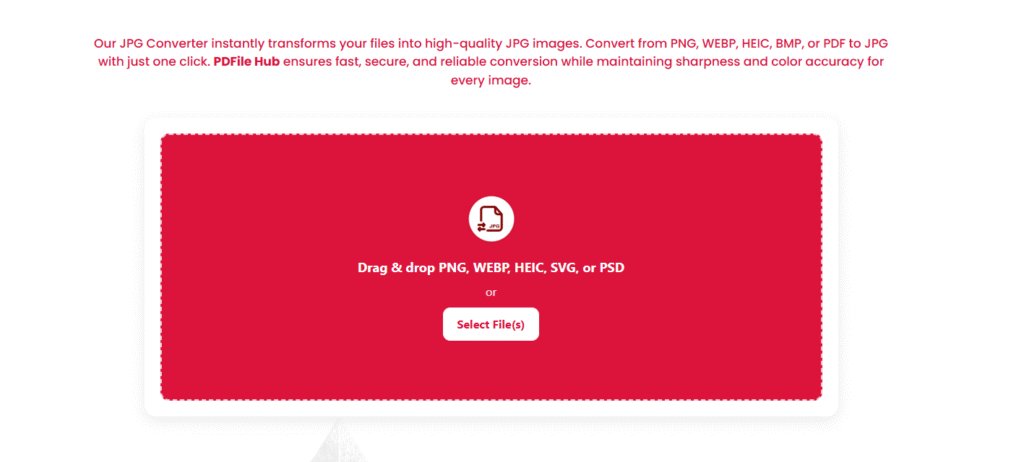
- Open PDFileHub → Converter to JPG → to JPG.
- Upload your files (PNG, WEBP, HEIC, SVG). Drag-and-drop or click Choose Files.
- Set output options (if available):
- Size (pixels):
- For web/photos: long edge around 1200–2000 px is a good general target.
- For social: match platform sizes (e.g., 1080×1080).
- For print: calculate inches × DPI (e.g., 6″ at 300 DPI → 1800 px).
- Quality / Compression:
- Start with 75–85% (visually lossless for most photos).
- Go lower (60–70%) for email/portals where size matters, but check for banding or halos.
- Enable progressive JPG if offered (loads in passes on slow connections).
- Background color (for PNG/SVG/WEBP with alpha): pick white or your brand color. This replaces transparency.
- Color profile: choose sRGB for consistent display across browsers and apps.
- EXIF/Metadata: keep camera metadata if needed; remove to reduce size/privacy.
- Size (pixels):
- Convert and wait for processing to finish.
- Download the JPG(s) or a zip for batches.
- Verify at 100% zoom. Check faces, skies, and edges for compression artifacts; re-export at slightly higher quality if needed.
Mobile (iOS/Android)
- Open PDFileHub → Image Converter → to JPG.
- Upload from Photos/Files/Drive/iCloud.
- Choose size & quality. For quick sharing, original size with 80% quality is fine; for portals, downscale the long edge (e.g., 1600 px).
- Background color for transparent sources (PNG/SVG/WEBP with alpha).
- Convert → Download → preview in the gallery.
Getting the best quality-to-size ratio
Pick the right pixel dimensions first
File size is driven mostly by pixels. Downscaling a 6000 px photo to 1800 px often saves far more than nudging quality from 85% to 70%—with less visible harm.
Match content to compression
- Photos & gradients: JPG shines—75–85% often looks indistinguishable from lossless. Watch for banding in skies; if present, bump quality or add mild noise (if your tool supports it).
- Text/UI/line art: JPG can produce halos. If you must use JPG, export at slightly larger size and higher quality (85–90%) to tame artifacts—or consider PNG/SVG instead.
Use sRGB
- Cameras/phones may capture in Display P3 or attach unusual profiles. Converting to sRGB prevents washed-out or oversaturated results on non-color-managed apps.
Consider progressive JPG
- Progressive encoding loads a blurry preview then sharpens—great for UX on slow networks. Final quality and size are similar to baseline.
Keep an editable master
- Save your working file (PNG/TIFF/SVG/PSD). Export JPGs as delivery assets so you don’t accumulate compression losses with each edit.
Handling transparency the right way
JPG doesn’t support alpha. If your PNG/WEBP/SVG has transparency:
- Choose a background color. White is common for documents; use brand colors for marketing assets.
- Check the edges at 200% zoom. If you see a faint halo (from anti-aliased edges over old backgrounds), try:
- Re-export the source on your chosen background first, then convert to JPG, or
- Remove any leftover matte in your editor and re-convert.
Format-specific tips
PNG → JPG
- Great when you’re converting photos that happened to be saved as PNG.
- For logos/icons, consider staying in PNG or SVG. If you must produce JPG, use a larger pixel size and higher quality (85–90%) and a clean background color.
WEBP → JPG
- If the source WEBP is already optimized, expect a modest size increase after conversion.
- Preserve appearance by keeping sRGB and similar pixel dimensions; avoid unnecessary upscaling.
HEIC → JPG
- iPhone photos can include extended dynamic range. Converting to JPG may slightly alter look—standardize to sRGB and check highlights.
- If Live Photo motion is present, JPG captures a single frame (no motion).
- Keep EXIF if you need capture date/location; remove for privacy.
SVG → JPG
- Decide the exact export size (e.g., 2400×1600 for a hero image, or 1200×1200 for a social post).
- Set the background color intentionally; vectors don’t carry a raster background until you render them.
- For line art, consider exporting larger then downscaling to preserve edge sharpness.
Batch conversion & naming hygiene
- Batch convert mixed formats in one go; apply uniform size/quality for consistent results.
- Use clean filenames:
product-123_front_1600.jpgblog-hero_how-to-convert_2000x1200.jpg
- Avoid spaces/special characters. Stick to lowercase with hyphens/underscores—friendlier for CMS and code.
Troubleshooting: quick fixes to common issues
“Upload failed” or timeouts
- Huge originals + weak networks stall. Downscale first (e.g., long edge to 2000 px) or switch to stable Wi-Fi.
- Try a private window/another browser if extensions block uploads.
Washed-out or oversaturated colors
- The source likely used a wide-gamut profile. Re-export as sRGB and reconvert.
Banding in skies or gradients
- Increase quality a bit (e.g., 75% → 85%).
- If your editor supports it, add very light dithering/noise before export to break up bands.
Jagged/haloed text and logos
- That’s a JPG limitation on hard edges. Increase pixel size and quality, or switch to PNG/SVG for these assets.
File still too large
- Reduce pixel dimensions first; then step quality down gradually (e.g., 85% → 80% → 75%), checking at 100% zoom.
- Remove embedded EXIF/metadata to shave extra KB and protect privacy.
Blurry after conversion from SVG
- You likely exported too small. Re-export at target size (or 2× and downscale). Ensure strokes align to pixel grid for UI icons.
Practical recipes
Website photo (PNG/HEIC → JPG)
- Set long edge to 1600–2000 px, sRGB, quality ~80%, progressive on.
- Convert → Download → Verify faces/edges at 100%.
Logo on white background (PNG/SVG → JPG)
- Set exact display size (e.g., 1200×600), background: white, quality 85–90%.
- Convert → Check edges at 200%. If halos persist, stick with PNG.
Social square (WEBP/PNG → JPG)
- Set 1080×1080 (or platform-recommended), sRGB, quality 80%.
- Convert → Verify size under platform limits.
Email-friendly photo (HEIC → JPG)
- Long edge 1200–1600 px, sRGB, quality 70–80%, remove EXIF.
- Convert → Keep file < 300–500 KB if possible.
A quick pre-publish checklist
- ✅ Correct pixel dimensions for destination (don’t rely on DPI for screens).
- ✅ sRGB color for consistent display.
- ✅ Quality 75–85% for photos (higher for graphics if you must use JPG).
- ✅ Intentional background color for formerly transparent images.
- ✅ Reasonable file size; remove metadata if not needed.
- ✅ Clear, searchable filename.
Final thoughts
Converting to JPG is about more than file compatibility—it’s a balance of pixel size, compression quality, and color management. If you set the right dimensions up front, keep color in sRGB, and choose a sensible quality level, you’ll get compact images that still look great. Handle transparency thoughtfully (pick a background color) and keep an editable master in a lossless format for future tweaks. With PDFileHub’s converter, the workflow is simple on desktop and mobile: upload → set size/quality/background → convert → verify. Do that consistently and your JPGs will be fast to load, easy to share, and reliably good-looking everywhere.