

Converting images to PNG sounds simple—pick a file, hit convert, download. But if you care about crisp results, transparency, color accuracy, and file size, a little know-how makes a big difference. This guide explains when PNG is the right choice, what to expect when converting from JPG, WEBP, HEIC, and SVG, and gives you a clear, step-by-step workflow using PDFileHub on desktop and mobile. We’ll cover transparency, DPI, color profiles, batch conversion, and the most common troubleshooting fixes so you get predictable, great-looking PNGs every time.
Why convert to PNG (and when not to)
PNG is a lossless raster format that excels at:
- Transparency (alpha channel): perfect for logos, UI elements, icons, and graphics on any background.
- Sharp edges & text: linework and type stay crisp without JPEG artifacts.
- Consistent rendering across platforms: widely supported on web, design tools, and office apps.
When not to choose PNG:
- Photography & large gradients: PNGs can be much bigger than JPG/WEBP for photos. If transparency isn’t required and file size matters, JPG or WEBP is often better.
- Scalable graphics: If you need infinite sharpness at any size, keep SVG (vector) rather than rasterizing to PNG—unless your workflow or destination requires raster.
Understand the source formats before you convert
JPG (JPEG)
- Lossy compression; small files but can show blocky artifacts, halos around text, and banding in gradients.
- No transparency. When you convert to PNG, the background that looked white in JPG becomes baked in unless you remove it first.
- Good for: photos. Not ideal for: logos, UI.
WEBP
- Can be lossy or lossless and supports transparency.
- Often smaller than PNG for the same visual quality, but not universally required by all workflows.
- Converting WEBP→PNG is common when a destination (CMS, design tool, printer) doesn’t accept WEBP or you need a lossless PNG with alpha.
HEIC (HEIF)
- Modern camera format (especially iPhones). Great quality at tiny sizes, can carry depth and live metadata.
- Not every desktop app reads HEIC; converting to PNG guarantees compatibility.
- Transparency isn’t typical for camera images; expect an opaque PNG.
SVG
- Vector, infinitely scalable. To get a PNG you rasterize at a specific pixel size (width/height and DPI).
- Transparency is preserved when rasterized onto a transparent canvas.
- Choose output dimensions carefully to avoid blurry icons.
Convert to PNG in PDFileHub (step-by-step)
Desktop (Windows/Mac/Linux)
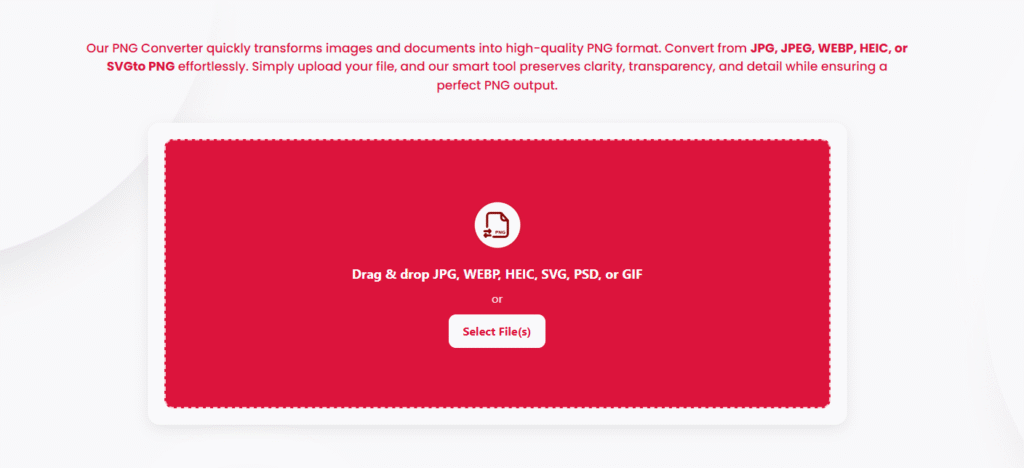
- Open PDFileHub → Converter to PNG and choose to PNG.
- Upload your images (JPG, WEBP, HEIC, SVG). Drag-and-drop or click Choose Files.
- Set output options (if available):
- Size: Keep original dimensions or specify width/height (for SVG, set the exact pixel size you need).
- Background & transparency:
- JPG/HEIC: no alpha; choose transparent only if you’re removing a background (requires a background-removal step) or set a solid background color.
- WEBP/SVG with alpha: ensure preserve transparency is on.
- DPI (metadata): For print targets, set 300 DPI; for screen-only, 72–96 DPI metadata is fine. (DPI doesn’t change on-screen sharpness; pixel dimensions do.)
- Color profile: Keep sRGB for web compatibility.
- Convert and wait for processing to complete.
- Download individual PNGs or a zip if you uploaded a batch.
- Verify the result: open at 100% zoom, confirm edges are clean and transparency looks correct on different backgrounds.
Mobile (iOS/Android)
- Open PDFileHub in your mobile browser → Image Converter → to PNG.
- Upload from Photos/Files/Drive/iCloud. (For HEIC from iPhone, grant access to Photos.)
- Set options (size, transparency). For social or messaging, original size is usually fine; for web icons, specify exact pixel dimensions.
- Convert, download, and preview in the gallery or a viewer with a dark background to double-check transparency halos.
Getting perfect edges & correct size
Choose the right pixel dimensions
- Web/UI icons: use exact sizes (e.g., 512×512, 256×256, 64×64).
- Social/marketing: follow platform guidelines (e.g., 1080×1080).
- Print: compute needed pixels = inches × DPI (e.g., 6″ at 300 DPI → 1800 px). Set that as export size.
Keep vectors vector (if possible)
- If you own the SVG and just need a logo on web, consider keeping the SVG. If you must deliver PNG, rasterize at the largest size you’ll need, then scale down for smaller versions. Avoid upscaling later.
Mind the background
- JPG/HEIC sources don’t have transparency. If you need a transparent PNG (for a logo on any background), remove the background before or during conversion (with a background removal tool), then export PNG with alpha.
- WEBP/SVG with alpha should retain transparency automatically—double-check by previewing on dark and light backgrounds.
Avoid needless enlarging
- Upscaling a small source (e.g., 200 px logo to 2000 px) will look blurry. If you only have a tiny raster, try vector-tracing the logo or ask for the original SVG/AI/PDF.
Color accuracy, profiles, and DPI
Use sRGB
- For web and general usage, convert to sRGB to avoid color shifts between devices. Some HEIC or camera images carry wide-gamut profiles (Display P3); converting to sRGB makes output consistent.
Gamma & brightness
- If a PNG looks darker/lighter in one app, it may be how that app handles color/gamma. Export to sRGB and test in multiple viewers (browser + image viewer).
DPI is just metadata
- DPI doesn’t change how an image looks on screens—pixel dimensions do. Set DPI correctly for print handoff, but prioritize the right width/height.
Special notes by format
JPG → PNG
- Expect larger files if dimensions stay the same, because PNG is lossless.
- To keep size reasonable for UI graphics, consider downscaling slightly (e.g., from 4000 px wide to 1600 or 1200 for web) if appropriate.
- If you need transparency from a JPG, run background removal before exporting PNG.
WEBP → PNG
- If the WEBP already has transparency, it should carry over.
- If a destination forbids WEBP (older CMS/printers), PNG is a safe fallback—but check file size; you may need to downscale for email/portals.
HEIC → PNG
- Great for cross-app compatibility.
- If Live Photos/metadata are embedded, PNG will not carry motion; it’s a still image.
- If the result looks slightly different in color, convert to sRGB at export.
SVG → PNG
- Set explicit size. For crisp UI assets, export at pixel-perfect sizes (e.g., 24, 48, 96).
- Preserve transparency; beware of strokes and effects that may rasterize with soft edges—export at higher size then downscale if you need ultra-clean boundaries.
Batch conversion & naming best practices
Batch upload
- Drop multiple files (mixed formats) and convert in one go. When available, use uniform settings (size, background, color profile) so all outputs match.
Smart filenames
- Use consistent, searchable names:
brand-logo_white_512.pngui-icon_download_24.pngheader-hero_1600x900.png
- Avoid spaces/special characters; use hyphens or underscores. This helps when importing to CMS or code.
Folders by density/size
- For web/app assets, organize by size or density (
/1x,/2x,/3x) or by breakpoint (/mobile,/desktop) so teams grab the correct file.
Common pitfalls (and quick fixes)
“Upload failed” or timeouts
- Very large HEIC/JPG files on slow networks can stall. Use a stable Wi-Fi connection or pre-shrink the longest side (e.g., from 6000 px to 2400 px).
- Try a private window or another browser if extensions interfere.
Transparent PNG shows a white/black halo
- This usually happens when a JPG with a white background is masked during removal—the edge pixels remain light. Re-run background removal with edge smoothing/refine edge, or export the source on a contrasting background and remove again.
PNG looks dull or too vibrant
- Convert to sRGB and re-export. Wide-gamut profiles can shift on non-color-managed apps.
Blurry output from SVG
- You likely exported too small. Re-export at the exact pixel size needed (or 2–3× and then downscale). Keep stroke alignment and pixel grid in mind for iconography.
Huge PNG files
- PNG is lossless. If you don’t require transparency or exact lossless quality, consider WEBP (lossless/lossy) or JPG for photos. Otherwise, reduce pixel dimensions.
Alpha not preserved
- Ensure the source actually has transparency (WEBP/SVG). For JPG/HEIC, there is none by default—remove the background first, then export PNG.
Quick workflow recipes
Logo from SVG to transparent PNG (web/app):
- Upload SVG → set exact size (e.g., 512×512).
- Ensure transparent background.
- Convert → Download → Export additional sizes (256, 128, 64).
- Verify on light/dark backgrounds.
Product photo from HEIC/JPG to PNG with white background:
- Upload HEIC/JPG → set max width (e.g., 1600 px) to keep size reasonable.
- Choose sRGB; set background color white (no alpha).
- Convert → Download → Check sharpness at 100%.
Social image from WEBP to PNG (platform requires PNG):
- Upload WEBP → keep dimensions or match platform size.
- Preserve transparency only if needed; otherwise solid background.
- Convert → Download → Verify file size under platform’s limit.
Icon from JPG to transparent PNG (needs alpha):
- Run background removal on the JPG (clean edges).
- Export PNG with transparency at exact pixel size.
- Test on multiple backgrounds.
A quick pre-publish checklist
- ✅ Correct pixel dimensions for the destination (not just DPI).
- ✅ sRGB color profile to avoid color shifts.
- ✅ Transparency preserved (or intentionally set).
- ✅ Clean edges—no halos after background removal.
- ✅ Reasonable file size (downscale or choose a different format if too big).
- ✅ Clear filename (no spaces/special characters).
Final thoughts
Converting to PNG is more than a format swap—it’s about delivering the right pixels, right color, and right background for the job. PNG shines for transparency, UI, logos, and anything that needs crisp edges and predictable display. If you match your output size to its destination, choose sRGB, and verify transparency, you’ll get professional results every time. With PDFileHub’s converter, the process is straightforward on desktop and mobile: upload → set size/profile/background → convert → verify. Do that consistently and your PNGs will look sharp, load reliably, and fit seamlessly into your website, app, or print workflow.