

Converting a PDF into a PowerPoint (PPTX) lets you edit text, move elements, rebrand quickly, and present without rebuilding from scratch. Done well, you’ll preserve layout, fonts, and images while turning static pages into flexible slide content. This guide explains when PDF→PPT makes sense, how to get the cleanest, most editable result, and a straightforward step-by-step workflow in PDFileHub on desktop and mobile. We’ll also cover OCR for scans, handling fonts, images, shapes, and tables, plus troubleshooting and a quick polishing checklist so your final deck looks professional.
When (and why) to convert a PDF to PowerPoint
Reuse without rebuilding. Reports, brochures, white papers, and proposal PDFs often mirror slide-ready layouts. Converting saves hours versus re-creating slides by hand.
Fast collaboration. PPTX is easy to annotate, rearrange, and co-edit. Turn a locked PDF into slides your team can tweak.
Brand updates. Swap colors, fonts, and logos at the slide master level instead of editing artwork in vector tools.
Teaching & pitching. PDFs are great for distribution; PPT is better for pacing, reveals, and presenter notes.
When not to convert: If the PDF is scanned images only and you don’t need to edit text, exporting select pages as images might be quicker. If you only need one chart or one diagram, copy/paste or recreate that element instead of converting the whole file.
What affects conversion quality (and how to keep it high)
Text vs. images. True, selectable text converts into editable text boxes. Scanned PDFs (image-only) need OCR to become real text.
Fonts. If the original font isn’t available on your computer, PowerPoint will substitute. Result: shifted line breaks, wrapping changes, and layout drift. Install the original fonts or pick close brand-approved substitutes and reflow.
Vectors & shapes. Vector graphics (icons, charts, logos) often become editable shapes—great for recoloring—but complex artwork may flatten to images. That’s fine for fidelity; less ideal for editing.
Tables & charts. Simple tables usually convert cleanly into PPT tables; complex multi-nested tables or embedded charts sometimes rasterize. If you need to edit data, be ready to rebuild the table or chart.
Transparency & effects. Drop shadows, blends, or overlays can rasterize during conversion. Keep an eye on layered effects.
Page size vs. slide size. PDFs may be A4/Letter; slides default to 16:9. You may need to resize or reposition content to fit the slide canvas gracefully.
Convert PDF to PPT in PDFileHub (step-by-step)
Desktop (Windows/Mac/Linux)
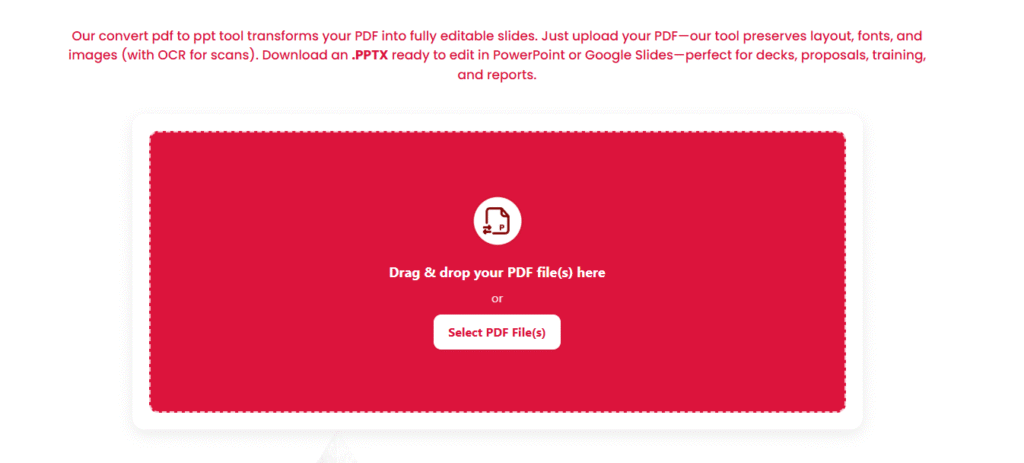
- Open PDFileHub → Convert PDF to PPT.
Navigate to the conversion tool. - Upload your PDF.
Drag-and-drop or click Choose File. For multi-document jobs, process one at a time to review quality. - Choose options (if available):
- Editable text preferred: Converts text to PowerPoint text boxes when possible.
- Keep vector shapes: Attempts to preserve vectors as editable shapes.
- OCR (for scans): Enable and select the correct language so headings, paragraphs, and numbers become real text.
- Images quality: Choose “Balanced” or “High” if your PDF has detailed diagrams/photos.
- Convert.
Start the conversion and wait for the PPTX download prompt. - Download & open in PowerPoint.
Review slide-by-slide: check headings, bullets, and any pages with complex visuals. - Save a working copy.
Keep a backup of the original PPTX and a working copy for edits (Report_to_PPT_working.pptx).
Mobile (iOS/Android)
- Open PDFileHub in your mobile browser → PDF to PowerPoint.
- Upload from Files/Drive/iCloud.
- Enable OCR for scans and Editable text if available.
- Convert → Download the PPTX → open in PowerPoint mobile or save to cloud for desktop editing.
Making the slides actually editable (fonts, text, shapes)
Install or substitute fonts thoughtfully.
- If you know the brand fonts (e.g., Inter, Roboto, Open Sans), install them first.
- If the exact font is unavailable, choose a close metric-compatible alternative to minimize line-break changes. Reflow headlines/bullets after substitution.
Normalize text boxes.
- Combine fragmented text boxes where practical (conversion can split lines into separate boxes).
- Use PowerPoint’s “Merge text boxes” approach manually: copy text into a single well-sized box per paragraph.
Clean up bullet lists.
- Reapply your theme’s bullet styles to unify indent, spacing, and symbols.
Rebuild essential tables and charts.
- If a table came in as an image but you must update numbers, recreate it as a PPT table for future edits.
- For charts, paste data into PowerPoint’s chart data sheet or import from Excel.
Vectors & icons.
- If logos or icons converted to grouped shapes, that’s great—recolor to brand palette.
- If they rasterized, consider replacing with SVG/PNG from your brand asset library.
Handling scanned PDFs (OCR matters)
If your PDF is a scan (you can’t select text in a PDF viewer), enable OCR during conversion:
- Language setting: Pick the correct language(s) for best accuracy.
- Quality of scan: 300 DPI, clear contrast, and straight pages improve OCR results.
- Post-OCR cleanup: Fix headings, bullet alignment, and hyphenation introduced at line breaks.
- Numbers & tables: Double-check figures; OCR can misread 0/O, 1/I, commas/points. Rebuild tables for critical data.
Layout & slide master: fast brand alignment
Set slide size early.
- Most decks use 16:9 (Widescreen). If your content looks cramped (coming from A4/Letter), adjust Slide Size (Design → Slide Size) and scale content.
Apply your theme.
- Load your brand theme (colors, fonts). This instantly harmonizes text and shapes. Expect to nudge sizes and spacing.
Use the Slide Master.
- Lock in title styles, body fonts, spacing, and footers.
- Then, quickly reapply layouts to slides (Home → Layout) to snap content into consistent positions.
Grid & alignment.
- Turn on Guides and Snap to Grid. Align titles, images, and callouts for a polished look.
Optimizing images for a lean, sharp deck
Right-size images.
- Huge embedded images bloat files. Use Compress Pictures in PowerPoint (Picture Format → Compress Pictures), choose a sensible resolution (e.g., 150–220 ppi for screens).
Avoid double compression.
- If the source images were already heavily compressed, use a gentle setting to avoid artifacts.
Replace low-res assets.
- If a key image looks blurry, swap it with a higher-resolution version (same dimensions as displayed on the slide).
Accessibility & readability
- Contrast: Ensure text color contrasts with background (use brand-approved pairs).
- Font size: Keep body text ≥ 18 pt for room visibility.
- Reading order: In Selection Pane, make sure screen readers read title → content → decorative items last.
- Alt text: Add alt text for important images/diagrams.
Security & privacy
- Redact before converting. If the PDF contains private info you shouldn’t share, redact it in the PDF first. Converting won’t remove sensitive text/images.
- Remove hidden data: In PowerPoint, Inspect Document (File → Info → Check for Issues) to remove personal info.
- Share safely: Export a final PDF for distribution if you don’t want recipients editing your deck.
Troubleshooting: quick fixes to common issues
Text turned into images.
- Some creators export PDFs as outlines/bitmaps. Try converting with “editable text preferred” enabled. If still rasterized, you’ll need OCR or manual retyping.
Fonts look wrong.
- Install the original fonts. If unavailable, choose the closest metrics and reflow. Consider standard web-safe/Google Fonts for portability.
Layout shifted.
- Switch slide size to match the PDF’s proportions, then scale elements. Use Alignment tools to tidy.
Tables misaligned.
- Rebuild crucial tables using PowerPoint’s Table tool for clean, editable structure.
Charts are flat images.
- Recreate charts with PowerPoint/Excel data so future updates are painless.
File size exploded.
- Compress pictures in PPT, avoid using 3000px images on small placeholders, and delete hidden/unused masters.
“Upload failed” or timeouts during conversion.
- Very large PDFs on slow networks can stall. Try stable Wi-Fi, compress the PDF lightly first, or split the PDF into sections and convert in parts.
Practical workflows (recipes)
Sales brochure → pitch deck
- Convert PDF → PPT with editable text and OCR if needed.
- Apply brand theme, fix fonts, normalize bullets.
- Replace brochure-style long paragraphs with 2–3 bullets per slide and add speaker notes.
- Compress images; export a lightweight version for email.
Research report (charts & tables)
- Convert with OCR on.
- Rebuild key tables in PPT; re-create charts with real data.
- Use Slide Master for consistent headings and captions.
- Add appendix slides for supporting data; export PDF for sharing.
Training handout → slide series
- Convert the whole PDF.
- Split dense pages across multiple slides.
- Add section dividers and a table of contents.
- Ensure minimum 18 pt body font; check accessibility.
Quick polishing checklist
- ✅ Slide size set (usually 16:9), theme applied
- ✅ Fonts installed or sensibly substituted; headings and bullets reflowed
- ✅ Key tables/charts rebuilt as editable objects
- ✅ Images compressed to sensible resolution; no blurry logos
- ✅ High-contrast colors; body text ≥ 18 pt
- ✅ Reading order & alt text checked for important visuals
- ✅ Sensitive info redacted; document properties inspected
- ✅ File saved with a clear name (e.g.,
Project_Update_2025-10-15.pptx)
Final thoughts
PDF→PPT conversion is about recovering editability without sacrificing design. The best results come from three habits: enable OCR for scans, install or substitute fonts smartly, and polish via Slide Master so layout and styles are consistent. With PDFileHub’s converter, the workflow is straightforward on desktop and mobile—upload → choose editable text/OCR → convert → tidy and brand. A few minutes of cleanup turns a rigid PDF into a flexible, on-brand deck your team can present with confidence.