

Turning a Word document into HTML sounds simple—export and you’re done. But if you’ve tried the default “Save as Web Page,” you’ve seen the problem: bloated markup, inline styles everywhere, and mysterious mso- classes that don’t play nicely on the web. This guide shows when Word→HTML makes sense, how to get clean, semantic, responsive HTML (not a tangle of inline styles), and a clear, step-by-step workflow with PDFileHub plus native Word exports. You’ll also learn how to preserve images, headings, lists, tables, footnotes, RTL text, and accessibility—along with a fast post-export cleanup checklist and fixes for common issues.
When (and why) to convert Word to HTML
Rapid publishing. You already have a report, policy, or guide in Word; converting to HTML puts it on your website or CMS quickly.
Email and knowledge bases. Many help centers, intranets, and newsletter tools accept HTML. Clean markup keeps styles consistent and reduces email spam flags.
Search & accessibility. Semantic HTML (real headings, lists, alt text) improves SEO and screen-reader usability in ways a raw DOCX can’t.
When not to convert. If your content is richly designed (complex page layouts, floating objects), consider exporting to PDF for layout fidelity and publishing a web-friendly summary page separately.
What “clean HTML” means (and why Word often misses it)
- Semantic tags:
<h1>–<h6>for headings,<p>for paragraphs,<ul>/<ol>/<li>for lists,<figure>/<figcaption>for images with captions,<table>for data tables. - Minimal inline CSS: Prefer a small external stylesheet or lightweight inline styles only where necessary.
- No editor cruft: Strip Word’s
mso-classes, XML namespaces you don’t need, and proprietary attributes. - Responsive images & typography: Images that scale (
max-width:100%) and readable default fonts/line-height. - Accessible content: Real headings in order, alt text on images, logical table headers, and sufficient contrast.
Prepare your Word file (quality in = quality out)
Use true styles in Word.
Apply Word’s Heading 1/2/3, Normal, Quote, List. Don’t fake headings with bold + bigger font. This is the single biggest factor in clean semantic output.
Use real lists.
Type your bullets/numbers as Word lists, not manual dashes or “1)”.
Caption images and tables.
Insert images with captions (References → Insert Caption). This maps nicely to <figure><figcaption> later.
Keep tables simple.
Avoid nested tables, excessive merged cells, or text boxes. If you have a layout table, consider redesigning as simple blocks or CSS.
Alt text.
Right-click each image → Edit Alt Text. Helpful for accessibility and future HTML.
Hyperlinks and footnotes.
Insert links properly; use Word’s footnotes/endnotes tools (they’ll map to anchors).
Language & direction.
If your document uses RTL languages (Arabic, Hebrew), set language/direction in Word; many converters respect these flags.
Method A — Convert with PDFileHub (cleanest for most people)
Best for: quick, web-ready HTML without Word’s extra markup, on desktop or mobile.
Desktop (Windows/Mac/Linux)
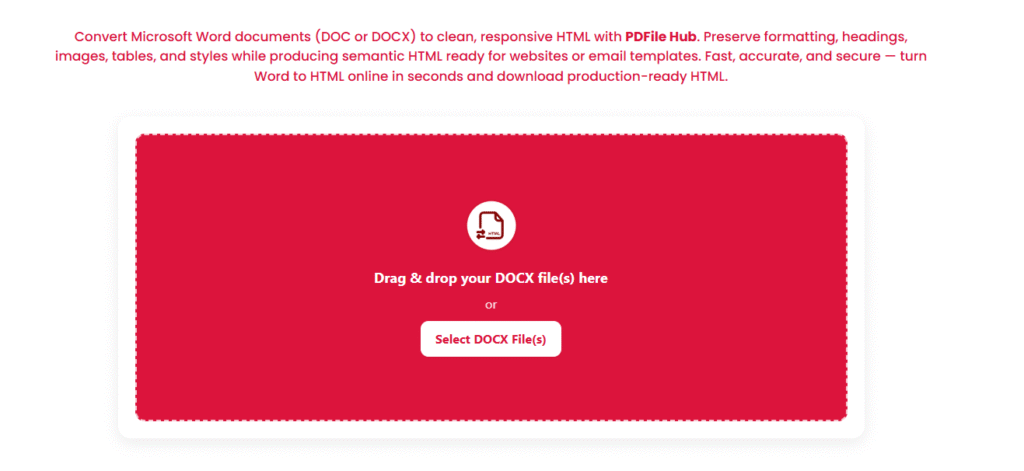
- Open PDFileHub → Word to HTML.
- Upload your
.docx. - Options (if available):
- Semantic mapping: Map Word Headings to
<h1–h6>, Normal to<p>, lists to<ul>/<ol>. - Image handling: Extract images as .png/.jpg and rewrite
<img src>references; choose max-width:100% for responsiveness. - CSS mode:
- Minimal inline (good for pasting into CMS blocks), or
- External CSS (download
style.css) for cleaner HTML.
- Tables: Convert with
<thead>/<th>for header rows. - Links & footnotes: Preserve anchors and create a footnote section at the end.
- Accessibility: Keep alt text; generate
langattribute; obey heading order.
- Semantic mapping: Map Word Headings to
- Convert → Download the HTML (and assets folder if generated).
- Open the HTML in a browser and spot-check: headings, lists, images, tables, links, and footnotes.
- Add CSS (if you chose external) to your site or paste the
<style>block into your CMS.
Mobile (iOS/Android)
- Open PDFileHub in your mobile browser → Word to HTML.
- Upload from Files/Drive/iCloud.
- Pick Minimal inline CSS for easy copy-paste into a CMS.
- Convert → Download → preview the page in your mobile browser.
Method B — Export from Microsoft Word, then tidy
Best for: offline-only workflows or when PDFileHub isn’t available. Expect more cleanup.
Desktop Word
- File → Save As → Web Page, Filtered (.htm, .html)
This removes some Word cruft but not all. - Word produces an
.htmland a folder with images. - Open the HTML in a code editor and tidy:
- Remove
class="Mso...",style="mso-...", odd XML namespaces. - Convert
<span style="font-weight:bold">fake headings into<h2>,<h3>as appropriate. - Keep only essential inline styles; move shared rules into a small
<style>block orstyle.css.
- Remove
- Make images responsive: add
img {max-width:100%; height:auto;}. - Check lists/tables: ensure proper
<ul>/<ol>/<li>and<thead>/<tbody>/<th>/<td>. - Validate links and anchors (especially footnotes).
- Add a minimal head (charset/viewport/title) if missing.
Mapping details (so your HTML is actually nice)
Headings
- Word Heading 1 →
<h1>(use only once per page if possible). - Heading 2/3 →
<h2>/<h3>. Avoid skipping levels.
Paragraphs & quotes
- Normal →
<p>. - Word’s Quote style →
<blockquote><p>…</p></blockquote>.
Lists
- Bulleted →
<ul><li>…</li></ul>; Numbered →<ol>…</ol>. - Nested lists must be nested
<ul>/<ol>inside<li>.
Images & captions
- Image →
<figure><img src="…" alt="…"><figcaption>…</figcaption></figure>when captioned; otherwise plain<img>withalt.
Tables
- Header row →
<thead><tr><th>…</th></tr></thead>; body →<tbody>…</tbody>. - Add
scope="col"/scope="row"tothfor accessibility where appropriate. - Avoid layout tables; use CSS for layout.
Footnotes
- Footnote call →
<sup id="fnref-1"><a href="#fn-1">1</a></sup>; - Footnote list → at bottom
<ol><li id="fn-1">… <a href="#fnref-1">↩</a></li></ol>.
RTL text
- Wrap blocks in
dir="rtl"and setlang="ar"/lang="he"as needed. - Ensure your CSS doesn’t override direction unintentionally.
Styling: keep it tiny and responsive
Base typography
- Body: a readable sans-serif (system stack or a single webfont), line-height ~1.5, font-size ~16–18px.
- Use margins on headings and paragraphs, not
<br>spam.
Images
img { max-width:100%; height:auto; }so they scale on mobile.
Tables
table { width:100%; border-collapse:collapse; }- Add padding and zebra-striping for readability if it’s a data table.
Links
- Clear color and underline on hover/focus; ensure contrast.
Dark mode (optional)
- Prefer color tokens that adapt, or keep colors neutral to avoid unreadable combinations.
Accessibility quick wins
- One
<h1>, then descend in order. - Alt text on all informative images; decorative images can have
alt="". - Table headers with
<th>andscopeattributes. - Link text should be meaningful (“Download policy” not “Click here”).
- Language attribute on
<html lang="en">(or your language). - Contrast: ensure sufficient contrast for text and links.
Content with equations, symbols, and special cases
Equations
- Complex equations may rasterize to images in some converters. If math must be selectable and accessible, consider MathML or MathJax in the final HTML (you can paste LaTeX into MathJax blocks).
Smart quotes / special characters
- Converters should output UTF-8; verify curly quotes, em dashes, and non-Latin characters display correctly.
Track changes / comments
- Accept or remove them in Word before conversion; otherwise they may appear in the HTML or confuse the structure.
Common pitfalls (and fast fixes)
Bloated HTML with mso- classes
- Re-export with PDFileHub or run a cleanup pass (remove
class="Mso...",style="mso-...", unused spans).
Headings look like paragraphs
- You used manual styling in Word. Reapply Heading 1/2/3 in Word, reconvert—or manually replace
<p><strong>…</strong></p>with proper<h2>tags.
Images don’t show after upload
- The exported HTML points to an assets folder. Upload that folder to your server/CMS and fix relative paths if needed.
Huge inline images
- Resize images before conversion or run them through an optimizer (target widths that match your content container, e.g., 1200px max).
Tables overflow on mobile
- Add responsive CSS: allow horizontal scroll on narrow screens (e.g., wrapper with
overflow-x:auto;). Consider stacking tables for mobile if the CMS supports components.
Footnotes lost
- Some exports drop anchors. Use PDFileHub with footnotes enabled or manually add
id/hrefanchors once.
RTL garbled
- Ensure
dir="rtl"on the container and correctlangattribute. Verify your CSS doesn’t forcedirection:ltr.
Quick publishing checklist
- ✅ Headings map correctly (
h1thenh2/h3) - ✅ Lists are real
<ul>/<ol>with nested<li>as needed - ✅ Images linked, responsive, and have alt text
- ✅ Tables have header cells (
<th>), proper scopes, and don’t overflow mobile - ✅ Minimal CSS; no unnecessary
mso-or editor cruft - ✅ Links and footnotes work; anchors jump correctly
- ✅ HTML validates, loads fast, and is readable at 320–1440px widths
Practical workflows (recipes)
Policy or guide → CMS article
- Clean styles in Word (Headings/Lists/Alt text).
- Convert with PDFileHub (semantic mapping, minimal CSS).
- Paste into CMS HTML block; upload images; add a small stylesheet.
- Preview on mobile; fix any long tables.
Marketing one-pager → landing section
- Convert to HTML; strip nonessential inline styles.
- Wrap sections in
<section>with meaningful headings. - Replace heavy hero images with optimized web versions.
- Add CTA buttons with accessible text.
Help center topic with footnotes
- Keep footnotes in Word; convert with anchors preserved.
- Style footnote list at the bottom; add “Back to reference” links.
- Test in your help platform (some sanitize HTML—keep it simple).
Final thoughts
Great Word→HTML isn’t just exporting—it’s structuring content so the web can use it: real headings, lists, images with alt text, and light, responsive styling. If you prepare the Word file with proper styles and use PDFileHub (or a careful “Filtered HTML” plus cleanup), you’ll get clean, semantic HTML you can paste into any CMS or serve directly. The routine is simple: style correctly in Word → convert → tidy → test on mobile. Do that, and your pages will be fast, accessible, and easy to maintain—without wrestling messy mso- glue ever again.