

Converting Word (DOC/DOCX) to JPG sounds simple—save, download, done. In practice, a polished result means right resolution (DPI), correct page size, crisp text, small file size, and trustworthy privacy. This AdSense-friendly guide explains what JPG is, why you might need Word→JPG, and gives you clear, step-by-step instructions to convert documents to high-quality images directly on our website—on desktop or mobile. You’ll also get pro tips for fonts, margins, multi-page docs, image compression, and a quick checklist so your final images look professional every time.
What Is JPG (JPEG)?
JPG (or JPEG) is a widely used image format optimized for photographs and web graphics. It uses lossy compression, which keeps file sizes small while maintaining visually good quality—perfect for screens and quick sharing.
Key properties of JPG:
- Small file sizes: Great for websites, social posts, and email.
- Universal support: Opens on virtually any device or app.
- Adjustable quality: You can balance clarity and file size with compression settings.
- Best for photos & complex images: Text and line art can look great too if exported at sufficient resolution (e.g., 200–300 DPI).
Note: JPG does not support transparency (no alpha channel). If you need transparent backgrounds, export to PNG instead.
Why Convert Word to JPG?
Even though Word can export to PDF, there are strong reasons to create images from your document:
- Web & social sharing
JPG images embed easily in websites, CMSs, and social platforms. No “download” friction—viewers see your content instantly. - Consistent look
A JPG is pixel-perfect—no font substitution issues, no reflowing. What you see is what everyone sees. - Thumbnails & previews
Need a quick preview of each page (catalogs, flyers, invoices)? JPG thumbnails are perfect for galleries and listings. - Portal or LMS requirements
Some systems accept images but not DOC/DOCX. JPG solves compatibility quickly. - Lightweight sharing
JPG’s compression keeps assets small for fast loading and easy emailing.
Heads-up: JPGs are not searchable like text files. If you need searchable text, create a PDF for archiving and JPGs for display.
Word to JPG: Best-Practice Outcomes
A professional Word→JPG export should deliver:
- Correct page size and orientation (Letter or A4, portrait or landscape).
- Crisp text at normal zoom (target 200–300 DPI).
- Balanced compression (clean edges without heavy artifacts).
- Consistent margins and background color (usually white).
- Multi-page handling (one JPG per page, or a ZIP with all pages).
Step-by-Step: Convert Word to JPG on Our Website (Desktop & Mobile)
Our online Word → JPG Converter runs in your browser, requires no install, and supports multi-page documents. Here’s exactly how to do it.
Desktop (Windows, macOS, Linux)
- Open the Word → JPG tool on our website.
From the homepage, go to Tools → Word to JPG (or search for “Word → JPG”). - Upload your Word file.
Click Choose File (or drag & drop) and select your.docx/.doc. - Choose conversion options (recommended presets available):
- Pages: All pages or a custom range (e.g., “1–3, 5”).
- Resolution (DPI):
- 200 DPI for screens and general sharing.
- 300 DPI for print-friendly clarity and small text.
- Width (px): Optional. If set, we’ll scale to that width and keep aspect ratio.
- Background: Typically white (JPG doesn’t support transparency).
- Quality (compression): Start at 80–90% for a good balance.
- Margins & scaling: “Fit to page” is safest; add margins if your content hugs the edges.
- File naming: Choose a base name (e.g.,
Brochure_2025-10-17)—we’ll append page numbers automatically.
- Convert.
Click Convert to JPG. We’ll render each page as a separate, high-quality JPG. - Download your images.
- Single-page docs: You’ll get the JPG directly.
- Multi-page docs: Download a ZIP containing
Brochure_2025-10-17_p01.jpg,p02.jpg, etc.
- Verify quality.
Open a few pages and check text crispness at 100–125% zoom, logo edges, and overall sizing. If text looks soft, re-convert at higher DPI or slightly higher quality.
Mobile (iPhone/iPad/Android)
- Open the Word → JPG tool in your mobile browser.
Navigate to Tools → Word to JPG. - Upload from device or cloud.
Tap Choose File and select the DOC/DOCX from Files, iCloud Drive, or Google Drive. - Use the mobile-friendly options:
- Resolution: Start at 200 DPI for quick sharing.
- Quality: 80–90% is ideal.
- Pages: All or a range.
- Convert & Save.
Tap Convert, then Download. For multi-page ZIPs, your device will either preview the ZIP or offer to save it to Files/Drive.
Pro Formatting Tips (for the Cleanest JPGs)
Use standard page sizes early
Set Letter (8.5″×11″) or A4 (210×297 mm) in Word before formatting. Avoid last-minute size changes.
Fonts & contrast
Use clear fonts (Arial, Calibri, Inter, Times New Roman) with solid contrast (dark text on light background). Avoid thin light-gray text at small sizes.
Images
Insert high-quality images (PNG/JPEG). Avoid low-res screenshots. If you must use screenshots, capture at 2× size.
Margins & bleed
Leave consistent white margins. If your design needs full-bleed edges visually, ensure there’s enough content to the edge so crop variations don’t show unintended borders.
Avoid tiny elements
Small 8–9pt footers become fuzzy in JPG, especially below 200 DPI. Use 10–12pt minimum for fine print.
Check line art
Logos with sharp edges can show JPEG artifacts at low quality. If edges look “fuzzy,” re-export at higher quality or consider PNG for those specific assets.
Privacy & Security Basics (Online Conversion)
- HTTPS only. Always check for the lock icon in your browser.
- Short retention. We automatically purge uploads after a short window (see the converter’s Privacy Policy).
- Sensitive content: Don’t upload confidential documents unless policy allows external processors.
- Keep originals. Store your DOCX safely for re-exports or edits.
Common Word → JPG Issues (and Quick Fixes)
Text looks blurry
- Convert at higher DPI (e.g., 300).
- Increase quality (compression 90–95%).
- Use darker text and avoid ultra-thin fonts.
Colors look off
- Keep your document in standard RGB colors. Avoid unusual color profiles.
- Make sure screenshots and images are sRGB.
File size is huge
- Drop DPI from 300 → 200.
- Reduce quality from 95% → 85–90% (little visual difference on screen).
- Limit page range or compress images before inserting into Word.
Edges show JPEG artifacts
- Increase quality (90–95%).
- If critical graphics still look rough, export those specific assets to PNG instead.
Background not transparent
- JPG doesn’t do transparency. If you need transparent backgrounds for overlays, export to PNG.
Multi-page handling
- Remember: one JPG per page. For all pages, we provide a ZIP. If you need a single long image, stitch JPGs in an editor after download.
Alternative Conversion Paths (If You’re Not Using Our Site)
- Word desktop (indirect): Save to PDF, then use an online PDF→JPG tool.
- Screenshots: Print to full-screen at high zoom and capture—but this is less precise than our renderer.
- Design tools: Paste content into Canva/Figma and export as JPG (useful for social posts).
Even if you use alternate workflows, our tool’s DPI + Quality controls make it simpler to get consistent, page-accurate results.
SEO Tips (If You’re Publishing JPGs)
- Use descriptive filenames (e.g.,
menu-restaurant-oct-2025-page1.jpg). - Add alt text and captions where you embed images.
- Consider a companion PDF for accessibility and searchability.
Quick Pre-Publish Checklist
- ✅ Resolution set (200–300 DPI)
- ✅ Quality balanced (80–95%)
- ✅ Page size/orientation correct
- ✅ Text readable at 100–125% zoom
- ✅ File size reasonable for your CMS
- ✅ Filenames clean and numbered
- ✅ Sensitive info removed or redacted
FAQs: Word to JPG
1) What DPI should I use?
200 DPI is ideal for screens. 300 DPI for small text or light printing. Higher DPI = larger files.
2) Why is my text not selectable?
JPG is an image format. If you need selectable text, export a PDF as well.
3) Can I convert only certain pages?
Yes—enter a custom range (e.g., 2–4, 6) in our tool’s Pages option.
4) How big should my JPG be for social media?
Use platform-specific sizes (e.g., 1080×1080 or 1200×628). Set width in pixels or export at 200 DPI and resize after download.
5) Is online conversion safe?
We use HTTPS and short-term retention. For confidential docs, follow your organization’s policy or convert locally first.
How to Convert Word to JPG on Our Website (Step-By-Step Summary)
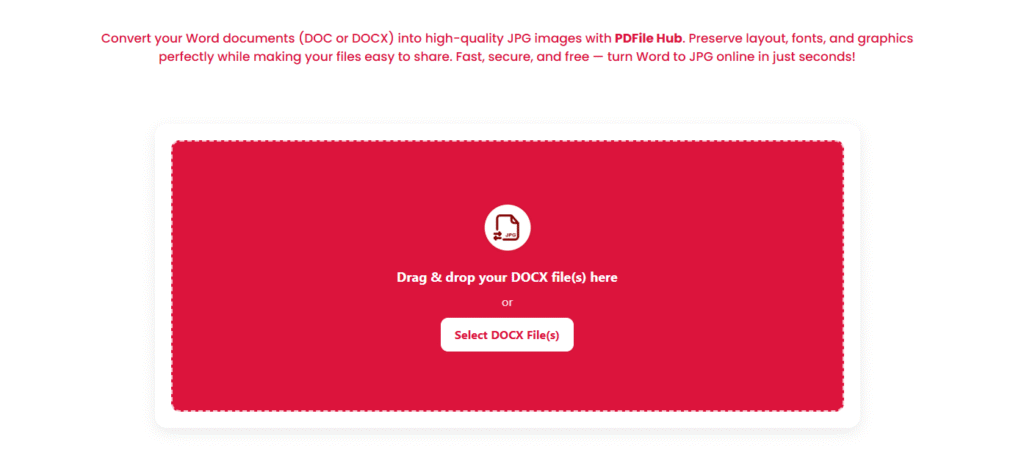
- Open Word To JPG on our site.
- Upload your DOC/DOCX.
- Choose Pages, DPI (200–300), Quality (80–90%), and Background (white).
- Click Convert to JPG.
- Download your JPG(s) or ZIP for multi-page docs.
- Verify clarity; if needed, re-convert at higher DPI/quality.
Suggested Title (SEO-Friendly)
Convert Word to JPG Online — Crisp, Fast & Free | DPI, Quality & Page-Perfect Results (2025 Guide)
Final Thoughts
Word to JPG is perfect when you want frictionless viewing, beautiful previews, and lightweight sharing. With our website’s converter, you control DPI, quality, and page selection to get sharp text and small files without guesswork. Follow the settings above, run the quick checklist, and your exported JPGs will look clean across sites, apps, and devices—every time.