

PDFs are great for sharing, not so great for changing—or so it seems. With the right tools and a smart workflow, you can edit text, replace images, add/remove/reorder pages, fill and create forms, redact sensitive info, sign, and even run OCR to turn scans into editable, searchable documents. This guide gives you the essentials and a step-by-step workflow in PDFileHub (desktop and mobile), plus pro tips for fonts, layout integrity, security, accessibility, and troubleshooting.
What “editing a PDF” really means
PDF is a final-layout format. Editing can happen at different layers:
- Content editing: change text, swap images, move shapes/objects.
- Page editing: insert, delete, rotate, reorder, extract, crop.
- Annotation & review: comments, highlights, stamps.
- Forms: fill existing forms (AcroForm/XFA), add new form fields, set defaults.
- OCR & text recognition: turn scanned pages into selectable, searchable text.
- Redaction & security: permanently remove sensitive info; password/encrypt; restrict actions.
- Layout polish: headers/footers, page numbers, watermarks, backgrounds.
- Structure: bookmarks, links, tags for accessibility.
Know which layer you need before you start; it saves time and avoids the wrong tool.
Before you start: quick prep checklist
- Keep a backup. Duplicate the original PDF (
_original.pdf) before edits. - Check if it’s a scan. Try selecting text. No selection = image-only = you’ll need OCR.
- Check permissions. Some PDFs are locked (passwords, editing restrictions). If you own it and have rights, remove restrictions first.
- Collect fonts and assets. For accurate text edits, having the original fonts helps prevent layout shifts.
- Decide output needs. Is this for print, email, or archiving? It affects image compression, color, and security settings.
Core editing tasks (and how to do them)
1) Edit text (replace, reflow, fix typos)
- Open PDF in a content editor (PDFileHub “Edit PDF” or any capable editor).
- Select the text box → type to edit.
- If fonts are missing, the editor may substitute and shift line breaks. Try installing the missing font or choose a close match, then adjust spacing.
- Style: set font, size, color, alignment; keep paragraph styles consistent for a professional look.
Tip: If the PDF was created from outlines (text converted to vector shapes), text won’t be editable. Use OCR or edit at the source app and re-export.
2) Replace or move images
- Click image → Replace (upload new) or Extract (save out).
- Resize/position with handles; keep aspect ratio to prevent distortion.
- For big PDFs, compress images after editing (balanced preset).
3) Pages: insert, delete, rotate, reorder, extract, crop
- Insert: add pages from another PDF or from images (JPG/PNG → new pages).
- Delete: remove unwanted pages (confirm page numbers first).
- Reorder: drag thumbnails into the desired sequence.
- Rotate: fix sideways scans (90° steps).
- Extract: save selected pages as a new PDF (helpful for sharing only what’s needed).
- Crop: trim margins; keep a safety copy in case you need the full page later.
4) Forms: fill, sign, create fields
- Fill forms: type into text fields, checkboxes, radio buttons; save a copy (
_filled.pdf). - Create form fields: switch to “Form edit” mode → add Text, Checkbox, Radio, Dropdown, Date fields; set tab order and default values.
- Calculate fields: some tools allow simple calculations (sum, product) for totals.
- Flatten when done if you want recipients to see entries but not edit fields.
5) Signatures: draw, image, or digital certificate
- Draw or image: add a handwritten look; place on signature lines; lock position.
- Digital certificates: apply a digital signature (cryptographic). Good for approvals and authenticity. Some workflows require a timestamp or certificate chain—follow your org’s policy.
6) Annotations & review
- Highlight, underline, strikethrough text.
- Comments: sticky notes for reviewers; include your name/time.
- Stamps: “APPROVED”, “DRAFT”, date stamps.
- Export comment summary if needed.
7) Redaction (permanent removal)
- Mark for redaction: draw boxes over sensitive text/images (names, IDs, addresses).
- Apply redactions to burn them in. This permanently removes content (not a black rectangle).
- Re-check using search for keywords you redacted (name variants, email, phone) to ensure nothing remains.
8) OCR: make scans searchable & editable
- Run OCR (choose language(s)) to create a text layer.
- Searchability: after OCR, Ctrl/Cmd+F should find terms.
- Editable text: some editors allow “correct recognized text” to fix OCR errors.
- For poor scans, deskew, increase contrast, and re-OCR.
9) Watermarks, page numbers, headers/footers
- Watermark: place behind content (e.g., “CONFIDENTIAL”), adjust opacity (5–15%) and rotation.
- Headers/Footers: add titles, dates, and page numbers (“Page 1 of N”).
- Bates numbering: sequential IDs for legal docs across folders.
10) Links, bookmarks, and navigation
- Add links to URLs or page locations; ensure they’re obvious (colored/underlined).
- Bookmarks: create a table of contents in the left pane for long PDFs (chapters/sections).
- Accessibility tags: if available, tag headings, lists, and reading order (important for screen readers).
Step-by-step in PDFileHub (Desktop & Mobile)
Desktop (Windows/Mac/Linux)
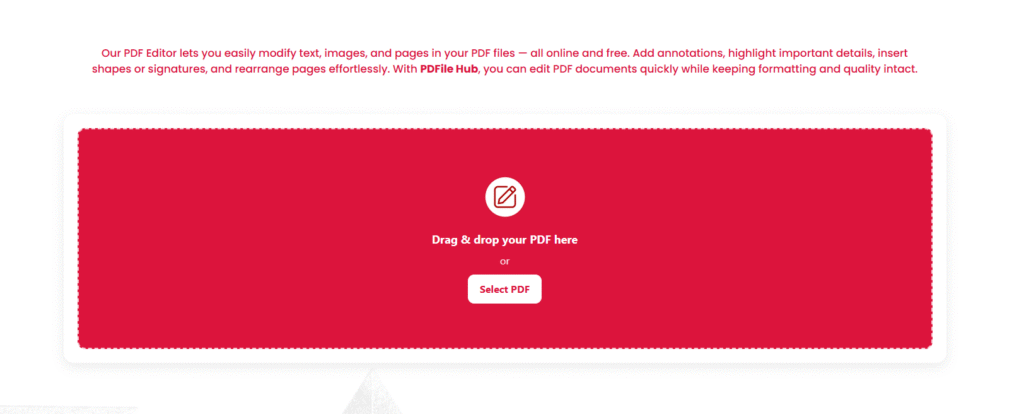
- Open PDFileHub → Edit PDF
Choose the task (Edit content, Organize pages, Forms, OCR, Redact, Sign). - Upload your PDF
Large files: ensure a stable connection; consider compressing first if size is extreme. - Perform edits
- Text/Image edits: select and modify content directly.
- Pages: open thumbnails, drag to reorder, rotate, insert, delete, extract.
- Forms: switch to Form mode to add fields; test tab order.
- Redact: mark areas, then Apply to finalize.
- OCR: enable language(s); review tricky pages.
- Polish & finalize
Add headers/footers, page numbers, watermark if needed.
Adjust links/bookmarks for navigation. - Export
- Choose PDF/A for archiving (if offered).
- Enable optimize/compress (balanced) for email/portal limits.
- Set security (password/permissions) if required.
- Review
Open the final PDF, test search, links, forms, and check visual quality at 100–150% zoom.
Mobile (iOS/Android)
- Open PDFileHub in your mobile browser → Edit PDF.
- Upload from Files/Drive/iCloud/Photos.
- Use quick tasks: reorder pages, rotate, fill & sign, redact blocks, OCR simple scans.
- Export and preview in your mobile PDF viewer.
Quality & layout integrity: keep things looking pro
- Font substitution: If edited text jumps lines or changes weight, install the original font or pick a metrically similar face. Adjust tracking/leading minimally.
- Consistency: Reuse the same font/size for edited areas; avoid mixing similar but different fonts (it looks messy).
- Don’t rasterize unnecessarily: Prefer preserving vector text/shapes; rasterization bloats file size and blurs text.
- Color profiles: For print, keep embedded profiles; for web, sRGB usually looks consistent.
Security, privacy, and compliance
- Redaction vs. hiding: Redact properly. Covering with a black box does not remove underlying text.
- Passwords & permissions:
- Open password (user) to view.
- Permissions password to restrict printing/copying/editing.
- Digital signatures: Use organizational certificates if compliance demands it.
- Metadata: Inspect and clear document properties, hidden layers, attachments you don’t intend to share.
Accessibility: make edited PDFs usable for everyone
- Tags & reading order: Tag headings/lists; ensure reading order follows the visual order.
- Alt text: Add alt text to meaningful images.
- Contrast & size: Keep body text legible (≥ 10–11 pt for print PDFs).
- Bookmarks: Provide chapter bookmarks for long docs.
File size control (without ugly artifacts)
- Optimize images after edits (balanced preset): downsample photos to ~150–200 DPI for screen, 300 DPI for print.
- Flatten only when needed: Transparency flattening can increase size; use sparingly.
- Remove cruft: Delete embedded thumbnails, unused objects, attachments, and hidden layers you don’t need.
Troubleshooting: quick fixes
Can’t select or edit text
- It’s a scan or outlined text. Run OCR or return to the source file to re-export as a real PDF.
Font changed or layout shifted
- Missing font. Install it or choose a compatible alternative and adjust spacing. Try editing in small spans instead of whole paragraphs to limit reflow.
Edits don’t “stick” in a portal
- Some portals reprocess PDFs. Flatten annotations/form fields (or export a print-ready copy) before uploading.
“Upload failed” or timeouts
- Large files + slow networks stall. Compress first, split into sections, or try another browser/private window (extensions sometimes interfere).
Redaction still reveals text when copied
- You forgot to Apply redactions. Re-open, apply, save a new file, and test by copying the redacted area.
Blurry text after saving
- Avoid “save as image” workflows. Ensure you’re exporting as proper PDF, not rasterizing pages. Re-check optimization settings.
Form fields not visible to others
- Flatten the form or ensure fields are saved correctly (not just in a temp viewer state).
Practical recipes
Fix a typo on page 1 and re-send
- Edit PDF → Text tool → correct the word.
- Ensure font match; nudge spacing.
- Export; run a balanced optimize; send.
Assemble a multi-file report
- Organize pages: merge inputs → reorder → insert cover page.
- Add headers/footers + page numbers.
- Compress images; bookmark sections; export.
Fill, sign, and lock a form
- Fill fields; insert signature.
- Flatten fields or set permissions to prevent edits.
- Clear metadata; export final.
Redact PII before sharing
- Search for names/IDs; mark for redaction.
- Apply redactions; spot-check; run OCR after redaction if it was a scan.
- Watermark “REDACTED” lightly; export.
Make a scan searchable & rotate pages
- Rotate odd pages; crop margins.
- OCR (correct language); verify search.
- Save optimized for email.
Quick final checklist
- ✅ Backup preserved; rights to edit confirmed
- ✅ Correct layer used (content/page/form/annotation)
- ✅ Fonts consistent; layout intact
- ✅ OCR run for scans; search works
- ✅ Redactions applied (permanent) if needed
- ✅ Page numbers, headers/footers correct
- ✅ Links/bookmarks functional; tags/alt text where relevant
- ✅ File size optimized; metadata cleaned; password/permissions set if required
Final thoughts
Editing PDFs doesn’t have to be painful. Decide what layer you’re changing, use focused tools (text, images, pages, forms, OCR, redaction), and finish with a quick polish—page numbers, compression, and security. With PDFileHub, you can handle the full spectrum on desktop or mobile: upload → edit → polish → export. Follow the checklists here and your PDFs will stay professional, searchable, secure, and lightweight—ready for clients, portals, and print.