

Turning an Excel sheet into XML gives you machine-readable, structured data that works well for APIs, integrations, product feeds, and configuration files. Done right, you’ll map columns to elements/attributes, handle repeats (line items), keep valid dates/numbers, and export a file that validates against a schema (XSD). This guide explains when Excel→XML makes sense, the core XML concepts you actually need, two practical workflows—with PDFileHub and with Excel’s XML Maps—plus tips for schemas, namespaces, repeating groups, and troubleshooting.
When (and why) to convert Excel to XML
Interoperability. XML is still a backbone format for government portals, enterprise systems (ERP, EDI), e-commerce catalogs, RSS/Atom feeds, and legacy APIs.
Validation. XML plus an XSD schema lets you verify structure and data types before sending—far safer than a free-form CSV.
Hierarchy. XML can model nested relationships naturally (e.g., Order → Items → Item → Options), where spreadsheets need multiple tabs.
When not to use XML: If your destination expects JSON, produce JSON instead. For bulk analytics, CSV/Parquet may be better. Choose XML when the receiver requires it or when rigid validation is helpful.
The 5 XML basics you actually need
- Elements vs. attributes
- Elements are the main building blocks:
<price>19.95</price>. - Attributes add properties:
<price currency="USD">19.95</price>.
Use elements for data you might extend/nest; attributes for short flags/IDs.
- Elements are the main building blocks:
- Root element
Every XML has one root, e.g.<catalog> ... </catalog>. - Namespaces
URIs that disambiguate tags (e.g.,xmlns="http://example.com/catalog"). If your target provides one, you’ll include it on the root. - Encoding
Default is UTF-8. Keep it that way unless told otherwise. - Well-formedness & validity
- Well-formed = syntactically correct XML.
- Valid = conforms to an XSD (if one is provided).
Design your sheet for XML (before exporting)
Flatten where possible; model hierarchy where required.
- Single-record exports (e.g., settings) fit one sheet.
- Repeating children (order line items, product variants) need either repeating rows or separate tabs joined by a key.
One column = one field. Avoid merged cells, wrapped headers, or header stacks. Use simple, unique header names you can map to tags (e.g., product_id, title, price, currency, category_path).
Data types & formats.
- Dates: use ISO-8601 (e.g.,
2025-10-15or2025-10-15T13:45:00Z). - Numbers: avoid thousands separators; use a dot for decimals if the schema expects it.
- Booleans:
true/falseor1/0as required.
Keys for relationships.
If you have a parent/child design (Orders / Items), include a foreign key column (e.g., order_id) in the child sheet so the mapper can assemble hierarchy.
Workflow A: Excel → XML with PDFileHub (simple and fast)
Best for: quick conversion, light mapping, mobile/desktop, no need to edit Excel’s Developer features.
Desktop (Windows/Mac/Linux)
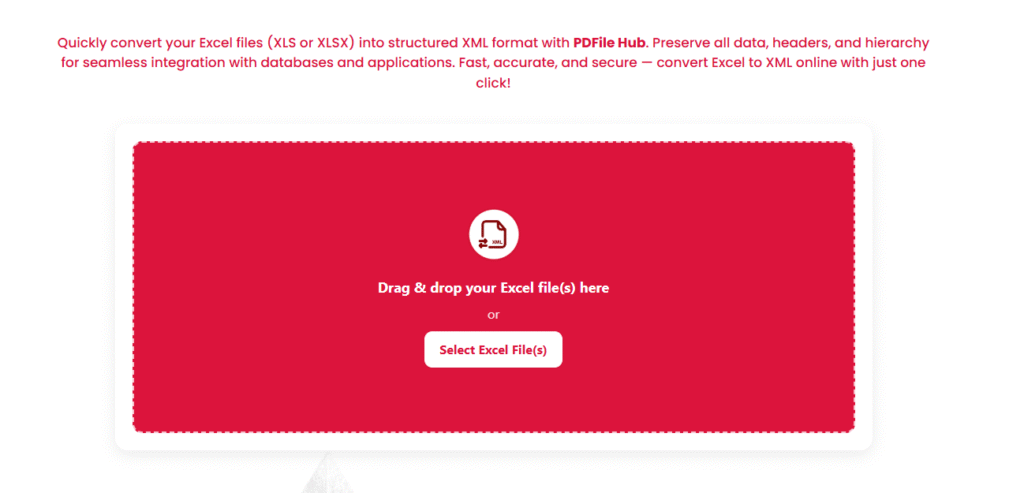
- Open PDFileHub → Excel to XML.
- Upload your XLSX/XLS (a CSV also works, but XLSX retains types).
- Choose mapping mode:
- Automatic (column → element): Good for flat lists. You’ll get
<row>elements with child tags from your headers. - Custom mapping: Point columns to custom tag names, set attributes (e.g., map
currencyas an attribute on<price>), define root and record element names, and (if supported) group children by a key.
- Automatic (column → element): Good for flat lists. You’ll get
- Set options:
- Root element name (e.g.,
products). - Record element name (e.g.,
product). - Namespace (paste from your spec if provided).
- Encoding: UTF-8.
- Date/number formats: force ISO dates, dot decimal.
- Root element name (e.g.,
- (Optional) Attach schema (XSD) if PDFileHub supports validation. You’ll see errors if the data violates types/enumerations.
- Convert → Download the XML.
- Open in a code editor to spot-check tags/indentation. If a portal provides an XSD, validate (see “Validation” below).
Mobile (iOS/Android)
- In your browser, open PDFileHub → Excel to XML.
- Upload from Files/Drive/iCloud.
- Pick Auto or Custom mapping, set root/record names, and convert.
- Download and preview in a text viewer or send to desktop for validation.
Workflow B: Excel’s built-in XML Maps (Windows desktop Excel)
Best for: strict schemas, repeatable exports, no web tools.
Caveats: XML Map features are Windows-only (full functionality); Mac Excel support is limited. Some 365 builds hide them by default.
One-time setup
- Enable Developer tab
File → Options → Customize Ribbon → check Developer → OK. - Load the schema (XSD)
Developer → Source → XML Maps… → Add… → pick your.xsd.
You’ll see a tree of elements/attributes. - Map fields to cells
- Drag the desired element from the XML Source pane onto the sheet—Excel creates a ListObject (table) for repeating elements or a single cell for scalar elements.
- For repeating child elements, create separate mapped tables on the same or another sheet. Excel will export each list as a nested set under its parent when designed per schema.
- Paste or link your data
Populate the mapped cells/tables from your dataset (formulas, Power Query, or static values). Keep column headers intact—Excel ties mapping to the table structure.
Export
Developer → Export → choose a filename (e.g., products.xml).
Excel enforces the map: if a field is missing or a type is wrong, you’ll get warnings. Fix data and export again.
Pro tips (XML Maps):
- Excel requires one root. Your XSD defines it; ensure maps you use all belong under that root.
- Attributes in XSD appear as properties of elements in the Source pane—map them carefully. Sometimes it’s simpler to model as child elements if your receiver allows.
- If your data outgrows a single table (e.g., multiple repeating groups), consider staging with Power Query to produce the exact shape your map expects.
Modeling hierarchy (parents, children, and repeats)
Most “real” XML exports need nested groups. A robust pattern:
Products with Variants
- Sheet Products:
product_id,title,brand,category, etc. - Sheet Variants:
product_id(FK),sku,color,size,price,stock.
In PDFileHub (custom mapping) or Excel Maps (with XSD), define:
<products>
  <product>
    <product_id>123</product_id>
    <title>Example Tee</title>
    <variants>
      <variant>
        <sku>TEE-RED-S</sku>
        <color>Red</color>
        <size>S</size>
        <price currency="USD">19.99</price>
      </variant>
      <variant> ... </variant>
    </variants>
  </product>
</products>
Design notes
- Keep a stable key (
product_id) so the tool can group children under the right parent. - Decide attribute vs element (e.g.,
currency="USD"vs<currency>USD</currency>) per the schema or API spec. - If your destination demands a specific tag order, set that order in the mapper (some receivers validate order strictly).
Namespaces and validation (XSD)
Namespace
If your spec includes a default namespace, add it to the root—e.g., xmlns="http://example.com/ns/catalog". If multiple namespaces exist (e.g., xsi, g: for Google feeds), include prefixes as specified.
Validation
- If PDFileHub (or your editor) supports XSD validation, load the
.xsdand check for invalid elements, max length, enumeration values, required fields, and type mismatches (e.g., string vs decimal). - On desktop, use an XML editor (VS Code + XML plugins, Oxygen XML) to validate locally.
Data hygiene: dates, numbers, booleans, special characters
- Dates: ISO-8601 (
YYYY-MM-DDorYYYY-MM-DDThh:mm:ssZ). Avoid locale formats. - Decimals: Use a dot as decimal separator; remove thousands separators.
- Booleans: match the schema (
true/falseor1/0). - Escaping: XML auto-escapes
& < > " '. Avoid inserting raw HTML unless CDATA is expected by the receiver. - Whitespace: Trim leading/trailing spaces in IDs, SKUs, emails.
Testing & QA checklist (before you send)
- ✅ Well-formed: opens cleanly in a code editor without red error markers.
- ✅ Root element and expected namespace(s) present.
- ✅ Elements/attributes match the exact names and casing from the spec.
- ✅ Required fields populated; no empty nodes that violate
minOccurs="1". - ✅ Data types correct (decimals, dates, booleans).
- ✅ Hierarchy correct (children under the right parent; order if required).
- ✅ File encoded as UTF-8.
- ✅ Optionally validated against the XSD (zero errors).
Troubleshooting: fast fixes to common issues
Receiver says “Invalid XML”
- Open the file in a validator. Look for unclosed tags or wrong namespaces. Ensure the root matches the schema’s
element name.
Fields missing in output
- In Excel Maps, the mapped table structure changed (columns deleted/renamed). Re-map the elements.
- In PDFileHub mapping, a column wasn’t assigned. Reopen mapping and bind it.
Characters look garbled
- Ensure UTF-8 and no double-encoding. Remove non-printables (use
CLEAN()/TRIM()in Excel).
Numbers export with commas
- Set a Text/Number format without thousands separators; use dots for decimals.
Dates rejected
- Convert to ISO with a helper column:
=TEXT(A2,"yyyy-mm-dd")or=TEXT(A2,"yyyy-mm-ddThh:nn:ss")and map the helper.
Repeating groups flattened
- You exported a single flat table. Use PDFileHub’s group by key feature or Excel’s XSD map with nested elements so children live under the parent tag.
Mac Excel can’t find XML export
- The full XML Maps export is a Windows feature. Use PDFileHub, a Windows machine, or a dedicated XML tool on Mac.
Power tips (teams & repeat jobs)
- Template workbook: Lock headers, data types, and mapping notes on a “ReadMe” sheet.
- Power Query prep: Normalize source data (split columns, trim, type-cast) before mapping; every month, refresh PQ → export XML—same shape, fewer errors.
- Version your XSD: If the receiver updates their schema, keep
v1,v2folders and note changes. - Sample set: Validate a small sample first, then run the full dataset.
Final thoughts
Excel→XML is about shape and certainty. If you design your sheet with clean headers and clear keys, pick a mapping approach (PDFileHub for speed, Excel XML Maps for schema-strict workflows), and validate against the XSD when available, you’ll deliver XML that imports the first time. The winning routine is simple: prepare data → map fields → export → validate. Nail that, and your catalogs, orders, feeds, and configs move smoothly between systems—no mysterious rejects, no last-minute firefights.