

Blurring faces is one of the fastest, most reliable ways to protect identities in photos and videos—whether you’re sharing team pictures, publishing user-generated content, or posting crowd shots from events. Done right, it preserves the story while removing personally identifiable details. Done wrong, it leaves “guessable” faces, ugly artifacts, or missed detections. This guide explains why and when to blur, the best methods (auto-detect vs. manual), how to do it step-by-step with PDFileHub, and the key settings that balance privacy with image quality. We’ll also cover batch jobs, edge cases (masks, helmets, partial profiles), and quick troubleshooting.
Why blur faces (and when you must)
Privacy & compliance. Many organizations blur faces to comply with privacy laws and platform rules (e.g., GDPR/CCPA policies, school policies, or newsroom standards). If minors are visible, face blurring is often required unless you have verifiable consent.
Safety. In sensitive contexts—activism, healthcare, law enforcement, corporate R&D—face blurring helps reduce risk of doxxing or harassment.
Professionalism. If you’re using screenshots or demo footage that contains bystanders or customers, masking identities is simply good practice.
When blurring isn’t enough. If distinctive tattoos, uniforms, or name badges remain visible, blur or mask those too. Face blurring protects identities, not every clue in the frame.
Methods: auto-detection vs. manual mask (and when to use each)
Automatic face detection (fastest for crowds)
- The tool detects faces and applies blur/pixelation to each one.
- Great for events, classrooms, or street scenes with many faces.
- Always review the result—tiny, partially hidden, or profile faces might be missed.
Manual brush/shape masks (surgical control)
- You draw circles/rectangles or paint over regions to blur, pixelate, or black-bar.
- Best for 1–5 faces, or when you must cover non-face identifiers: name tags, license plates, computer screens, documents.
Hybrid workflow (recommended)
- Use auto-detect first, then manually add any missed areas (profile faces, posters, reflections, mirrors).
Blur vs. pixelate vs. solid box
- Blur (Gaussian): pleasing, less jarring; use a strong radius so the face becomes unrecognizable even when zoomed in.
- Pixelate (mosaic): excellent for irreversible obfuscation; choose coarse pixels.
- Solid box/bar: unmistakably redacts but visually loud; great for legal/compliance where “obviously redacted” is desired.
Step-by-step: blur faces in PDFileHub (desktop & mobile)
Desktop (Windows/Mac/Linux)
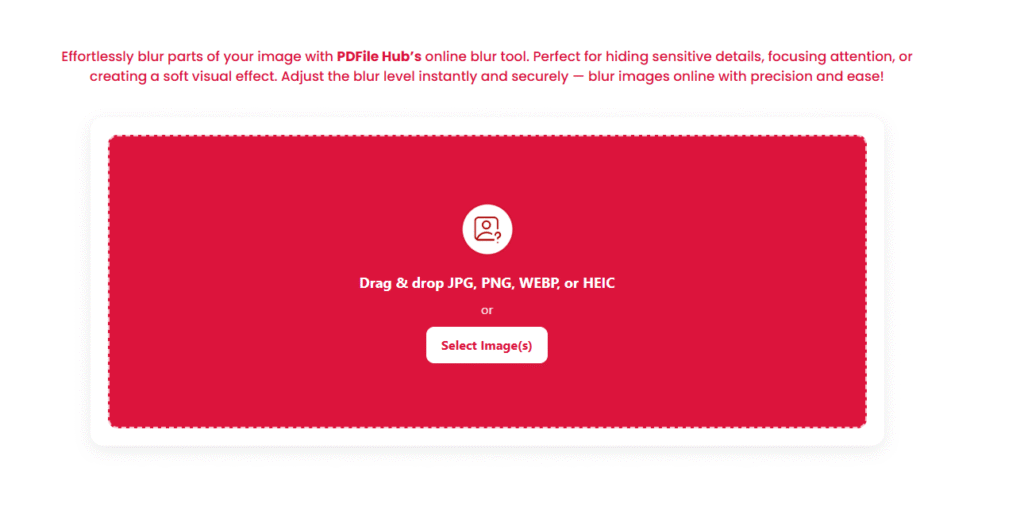
- Open PDFileHub → Image Face Blur
Select the Face Blur tool (or “Blur & Redact”). - Upload your image(s)
Drag-and-drop one or multiple photos, or click Choose Files. - Choose a mode
- Auto-detect faces: The tool scans and marks faces.
- Manual blur: Use brush or shape tools to mark areas yourself.
Tip: Start with auto, then switch to manual for touch-ups.
- Pick an effect & strength
- Blur: Increase the radius until features (eyes, nose, mouth) are indistinguishable at 200% zoom.
- Pixelate: Increase block size until you can’t infer identity even when zoomed in.
- Box: Choose a color (often black) and opacity (100% for legal redaction).
- Double-check detection
- Zoom around the frame; look for small or partial faces, reflections in windows/screens, and posters.
- Add manual masks where needed.
- Export settings
- Format: PNG (lossless) for further editing; JPG (quality 80–90%) for web.
- Color profile: sRGB for consistent display.
- Metadata: Consider removing EXIF (location, device) for privacy.
- Download
Save the blurred image(s). Keep originals archived in a secure location.
Mobile (iOS/Android)
- Open PDFileHub in your mobile browser → Face Blur.
- Upload from Photos/Files/Drive/iCloud.
- Auto-detect, then manual touch-ups with pinch-to-zoom.
- Set strength (blur radius or pixel size).
- Export to JPG/PNG and preview at full-screen zoom to confirm anonymity.
How strong should the blur be?
The key is irreversibility: if someone zooms in or applies sharpening, the person should still be unrecognizable.
Blur (Gaussian) guidance
- For head-and-shoulders photos at ~1500–3000 px wide, a blur radius in the 12–30 px range is a good starting point.
- If the face is large in-frame, go higher (30–60 px). If small, 8–16 px may suffice.
- Always check at 200% zoom; if you can still infer identity (eyes/mouth), increase radius.
Pixelation guidance
- Use a block size of 12–30 px for typical images; larger faces need 40–60 px or more.
- Pixelation tends to be more robust against sharpening than mild blur.
Solid box
- 100% opacity, covering the entire facial region (including hairline if necessary).
- Ideal for formal/legal redaction where ambiguity isn’t acceptable.
Batch blurring (events, classrooms, crowds)
If you have dozens or hundreds of images from an event:
- Use auto-detect on the batch.
- Sample-review outputs from different lighting and distances; adjust strength for worst-case faces (closest or sharpest).
- Apply the tuned setting and reprocess the whole set if needed.
- Spot-check random images—especially backlit scenes and side profiles.
Naming & folders
- Keep clear versions:
event-2025_raw/(originals)event-2025_blurred/(exports)
- Avoid overwriting; preserve originals for internal records (restricted access).
Edge cases you shouldn’t miss
Profiles & partially covered faces
- Auto-detection may miss side profiles, masked faces, or heads turned away. Manually add masks for any identifiable person (hair, eyewear, unique features). When in doubt, blur.
Reflections & screens
- Faces can appear in glass, mirrors, car windows, glossy whiteboards, and laptop screens. Scan edges of the frame carefully.
Posters & framed photos
- Blurring might be required if real people are identifiable in posters or wall art, depending on policy.
Kids/minors
- When minors are present, err on the side of over-redaction. Blur faces even if parents/guardians appear to consent unless you have written, verifiable consent aligned with your policy.
Uniforms, badges, and addresses
- If identity can still be inferred from name badges, ID cards, or house numbers, blur or box those too.
Quality, color, and export tips
- Choose the right output format:
- PNG for maximum clarity and further edits.
- JPG (80–90% quality) for web uploads; progressive JPG for nicer loading.
- sRGB profile: Keeps colors consistent across browsers and apps.
- No upscaling: Don’t enlarge low-res images; it won’t help anonymity and can create artifacts.
- Sharpening/filters after blur: Avoid global sharpening that could reduce the blur’s effectiveness—apply any enhancements before masking.
Policy & workflow best practices (teams & orgs)
- Write a simple checklist your team follows before publishing:
- Auto-detect faces
- Manual sweep for misses (profiles/reflections)
- Blur strength verified at 200%
- Other IDs (badges/plates/screens) redacted
- EXIF stripped if sharing publicly
- Manager/peer review for sensitive sets
- Keep consent rules handy. If your org allows unblurred faces with consent, document how consent is captured and stored (form, email trail).
- Version control. Maintain a private archive of originals; only the blurred versions go to public channels.
Troubleshooting: quick fixes
Auto-detect missed faces
- Increase detection sensitivity (if available).
- Zoom in and add manual masks. For side profiles or partially blocked faces, manual is often required.
Blur looks weak after export
- Increase blur radius or pixel block size.
- Check at 200% zoom after export. If using JPG, export at higher quality so compression doesn’t “unblur” patterns.
Artifacts or halos
- For pixelation, choose a larger block.
- For blur, make the mask area slightly bigger than the face to avoid sharp edges at mask boundaries.
Huge file sizes
- Export to JPG at 80–90% quality, or keep PNG but reduce dimensions to what you need (e.g., long edge 1600–2000 px for web).
- Remove EXIF/metadata.
“Upload failed” or timeouts
- Large originals on slow networks stall. Downscale first or process in smaller batches.
- Try another browser/private window if extensions interfere.
Practical recipes
Crowd photo for social media
- Auto-detect faces → Pixelate with block 24–36 px.
- Manual sweep for missed faces and reflections.
- Export JPG, long edge 1600 px, sRGB, 85% quality.
Small team photo for website
- Manual circular blur on each face you must anonymize.
- Blur radius 16–28 px (adjust to face size).
- Export PNG for a lossless master; then a web JPG 85% if needed.
Retail store shot with name badges
- Auto-detect + manual masks on badges and customer faces.
- Use solid boxes for badges; blur or pixelate faces.
- Remove EXIF and export JPG 80–85%.
Screenshot with video call participants
- Auto-detect faces within the video pane(s).
- Blur/pixelate; also box out usernames if visible.
- Export PNG for internal docs; JPG for web.
A quick pre-publish checklist
- ✅ All faces blurred/pixelated at a strength that’s unrecognizable at 200% zoom
- ✅ Non-face identifiers (badges, plates, screens) masked
- ✅ Reflections/posters checked
- ✅ Appropriate format (PNG for master, JPG for web), sRGB profile
- ✅ Reasonable dimensions and file size; EXIF removed if public
- ✅ Originals safely archived; public channels get the blurred version only
Final thoughts
Face blurring is both an ethical habit and a professional standard. With a smart workflow—auto-detect → manual touch-ups → strong, irreversible blur/pixelation → export with good settings—you’ll protect people’s privacy without sacrificing the usefulness of your images. PDFileHub’s Face Blur makes the process quick on desktop and mobile; your job is to set the right strength, check edge cases, and keep a tidy publishing pipeline. Do that consistently, and you’ll share images that tell the story while keeping everyone safe.