

Merging PDFs sounds simple—drop a few files in, press a button, and you’re done. In practice, you want the result to be clean, secure, and share-ready: correct page order, consistent orientation, a sensible filename, and—crucially—no privacy surprises. This guide walks you through safe online merging (desktop and mobile), how to use PDFileHub step-by-step, privacy and security considerations, common pitfalls, and a short checklist so your final document looks professional every time.
Why merge PDFs—and what “safe” really means
People merge PDFs to assemble proposals, bind invoices, collate scanned pages, or package reports with appendices. The goal is to produce a single, easy-to-share file that preserves readability and integrity. “Safe,” in this context, covers three things:
- Data protection. Your files shouldn’t be exposed to anyone else. When you use an online tool, look for transport encryption (HTTPS), clear deletion policies, and (if applicable) options to process files in-browser.
- Document integrity. The merged output should keep text selectable, preserve links and bookmarks when possible, and avoid unexpected image recompression that lowers quality.
- Practical compliance. If your PDFs contain personal or confidential data, you should follow your organization’s policy (e.g., consent, redaction, encryption) before uploading.
Safety first: privacy, security, and policy basics
Use HTTPS. Make sure the merge tool’s URL starts with https:// and your browser shows a secure connection. This protects files in transit.
Prefer minimal retention. Good tools either process files in your browser or delete uploads automatically after a short period. Check the site’s Privacy Policy for retention windows and whether files are used for anything besides your task (they shouldn’t be).
Handle sensitive content responsibly. If the document contains personal identifiers, financial data, or health info, consider:
- Redaction first. Redact sensitive sections in a local PDF editor before merging. (Don’t just draw a black rectangle—use a true redaction tool that removes underlying text.)
- Encrypt after merging. If recipients should have controlled access, apply a strong password when you’re done and share the password via a separate channel.
- Follow your rules. Some workplaces disallow external processing entirely; use an approved internal tool in those cases.
Keep originals. Always store the source PDFs in case you need to revert, correct a page, or re-merge with different ordering.
Step-by-step: merge PDFs in PDFileHub (desktop & mobile)
Desktop (Mac/Windows/Linux)
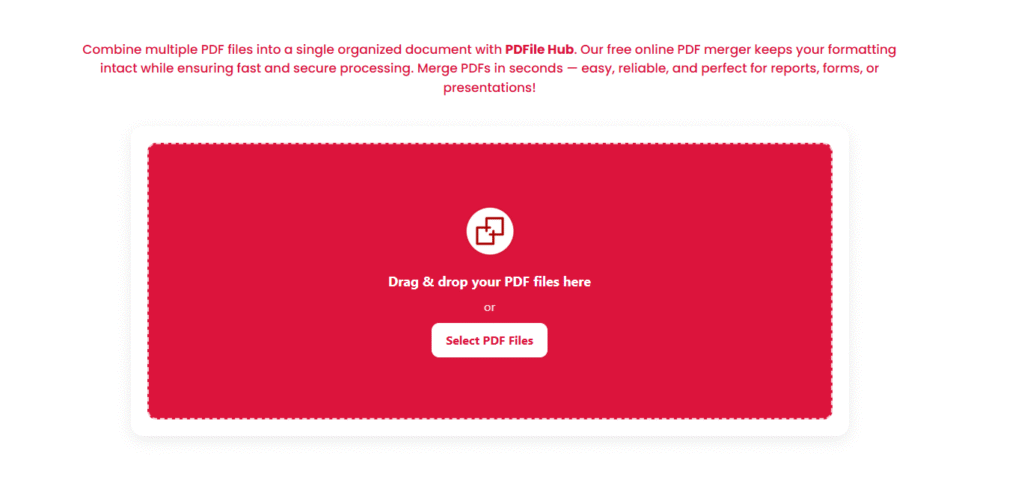
- Open PDFileHub → Merge PDF.
Navigate to the merge tool. - Add your files.
Drag and drop all PDFs you want to combine, or click Choose Files and select them together. If you forget one, you can add more later. - Arrange the order.
Once uploaded, you’ll see each file represented as a tile or list row. Drag to reorder into the sequence you want (e.g., Cover → Proposal → Appendix → Signature Page). - Optional: expand and manage pages.
If the tool shows page thumbnails, you can:- Reorder pages within a file.
- Delete pages you don’t need (e.g., duplicate scan backs).
- Rotate pages that came in sideways (common with scans).
This reduces clutter and makes the output cleaner.
- Merge.
Click Merge (or Combine). The engine builds a single PDF. - Download and review.
Save the merged file with a clear name likeProject-Proposal_2025-10-15.pdf. Open it, skim the entire document, and check:- Page 1 is correct and professional (logos not pixelated, no stray white pages).
- Page order matches your intent.
- Orientation is consistent; rotate any sideways pages and re-merge if needed.
- Text remains selectable where it was before (for non-scanned pages).
- Optional: compress and protect.
If the file is too big, run a gentle compression pass (aim for 150–200 DPI images for on-screen reading). If it contains private material, encrypt the final PDF with a password or apply permission settings before sending.
Mobile (iOS/Android)
- Open PDFileHub in your mobile browser and go to Merge PDF.
- Add files from your device or cloud (Files/Drive/iCloud). If you see an “Add more” button, use it to include all documents.
- Reorder files by dragging the list items up or down. If page-level thumbnails are available, use them to delete/rotate problem pages.
- Merge, download, and preview in your phone’s PDF viewer. For portal uploads, confirm the final size; if too large, use the site’s Compress tool and choose a balanced preset.
Organizing pages like a pro (reorder, rotate, clean)
Start with structure. Decide on a logical flow: title/cover, executive summary, main content, evidence/appendix, signature pages. Readers should never wonder “Why is this page here?”
Consistent orientation. Sideways pages break flow. Rotate them right-side-up in the merge tool before exporting.
Trim the cruft. Delete blank pages or duplicate scans. If you must include blanks (e.g., intentionally blank backs for print), label them “(This page intentionally left blank)” to avoid confusion.
Page numbering. If your merged document needs page numbers, add them after merging in a PDF editor (so numbering stays continuous). If you can’t edit, include a short table of contents at the front.
Bookmarks and links. Some tools preserve bookmarks and internal links when merging; others don’t. If bookmarks matter (e.g., legal briefs, long reports), check the result and add them back with a PDF editor if needed.
Ensuring readability and file size sanity
Merged PDFs can bloat if they include high-DPI scans or big images. To keep things tidy without ruining clarity:
- Downsample images to ~150–200 DPI for on-screen reading; use 300 DPI if you expect office printing.
- Use sensible compression (JPEG/JPEG2000 for photos; lossless for line art/screenshots to avoid halo artifacts).
- Avoid double compression. If originals are already optimized, a “light” optimization pass is safer than a heavy one.
- Test at normal zoom (100–125% on desktop). If text looks crisp and images look clean, you’re in the sweet spot.
Troubleshooting common merging issues
“Upload failed” or timeout.
- Large files + slow networks cause stalls. Try stable Wi-Fi, or compress big components first.
- Remove passwords or editing restrictions before uploading.
- If an extension interferes (ad blocker, privacy tool), try a private window or another browser.
“File type not supported.”
- Ensure you’re uploading PDFs (not Word or images). If you have images, convert them to PDF first (PDFileHub should have a JPG/PNG → PDF tool).
- If you received a PDF/A or a secured PDF, re-export or unlock it (with permission).
Pages appear blank or garbled.
- A page may use unusual color profiles or transparency. Re-export that page as a standard RGB image or print to PDF, then reinsert.
- Verify the originals open cleanly in multiple viewers (Acrobat, browser). If an original is corrupt, fix it before merging.
Order keeps reverting.
- Confirm you clicked Merge after reordering and you’re downloading the new file, not a cached one. Clear cache or hard-refresh the page before retrying.
Output is huge.
- Run a compress pass.
- Remove unneeded pages, thumbnails, or attachments.
- Avoid ultra-high DPI on scans unless required.
Text became unselectable.
- If the source was a scan (image-only), it never had selectable text. Use an OCR tool to add a text layer before or after merging.
- If selectable text became rasterized, you may have exported from a design tool as images. Re-export the originals as true PDFs with embedded fonts and merge again.
Links/bookmarks disappeared.
- Not all online mergers preserve these. If critical, add them back in a PDF editor or use a workflow that retains document structure.
Security add-ons: passwords, permissions, and sharing
After merging, you might want to control access:
- Password-protect the PDF with a strong user password if it contains private info.
- Set permissions (e.g., restrict editing/printing) to deter casual tampering. Note these controls are helpful but not foolproof against determined actors.
- Share smartly: send via a secure channel, and never include the password in the same email or chat thread—use a separate channel (SMS/call).
A quick pre-send checklist
- Name it clearly:
Client-Onboarding-Pack_2025-10-15.pdf - Open and scan the entire merged document
- Check order/orientation and remove strays
- Confirm size meets the portal/email limit
- Protect or redact if sensitive
- Store originals safely for future edits
Final thoughts
Merging PDFs online can be fast, safe, and professional when you follow a few best practices: confirm a secure connection, respect privacy rules, organize pages with intention, and perform a quick quality check before sending. With PDFileHub’s Merge tool, the process boils down to upload → arrange → tidy → merge → verify. Do that consistently and you’ll deliver polished documents that are easy to read, simple to file, and safe to share—no messy attachments or outdated versions floating around.