

Removing a photo’s background turns a good asset into a flexible one—ready for product pages, social graphics, presentations, or print. Done right, your subject looks natural on any backdrop (white, brand color, gradient, or transparent). Done wrong, you’ll see halos, jagged edges, or missing hair detail. This guide explains when and why to remove backgrounds, the best methods (AI auto-cutout vs. manual refinement), a PDFileHub step-by-step on desktop and mobile, plus pro tips for hair, semi-transparent objects, shadows, color spill, batching, export formats, and troubleshooting.
When (and why) to remove a background
- E-commerce consistency: Put varied product photos on the same white or brand color background for clean catalog pages.
- Design flexibility: Reuse the subject on multiple campaigns without reshooting.
- Smaller, faster creatives: Transparent PNGs slot into any composition; no clumsy rectangles.
- Focus & clarity: Removing clutter increases attention on the subject and boosts conversion in product galleries.
When not to: If the background adds essential context (e.g., lifestyle shots) or the subject has fuzzy boundaries that will look unnatural when isolated, consider subtle blurs or color grading instead of full removal.
Methods: AI auto vs. manual refinement (and when to use each)
AI Auto Cutout (fastest)
- Detects subject edges and returns a transparent result.
- Great for clear subjects: products, people, logos, simple objects.
- Always review edges—especially around hair, fur, glass, smoke, and fine accessories.
Manual Refinement (precision)
- Brush/erase: paint to keep/remove areas.
- Edge refine: feather/smooth/contrast edge details.
- Matting tools: sample foreground/background colors to recover fine hairs or translucent bits.
- Use manual steps after an AI pass to restore delicate detail and fix misses.
Hybrid Workflow (recommended)
- AI remove → 2) refine edges (hair, fur, lace) → 3) add natural shadow or reflection → 4) export.
Step-by-step: remove background in PDFileHub
Desktop (Windows/Mac/Linux)
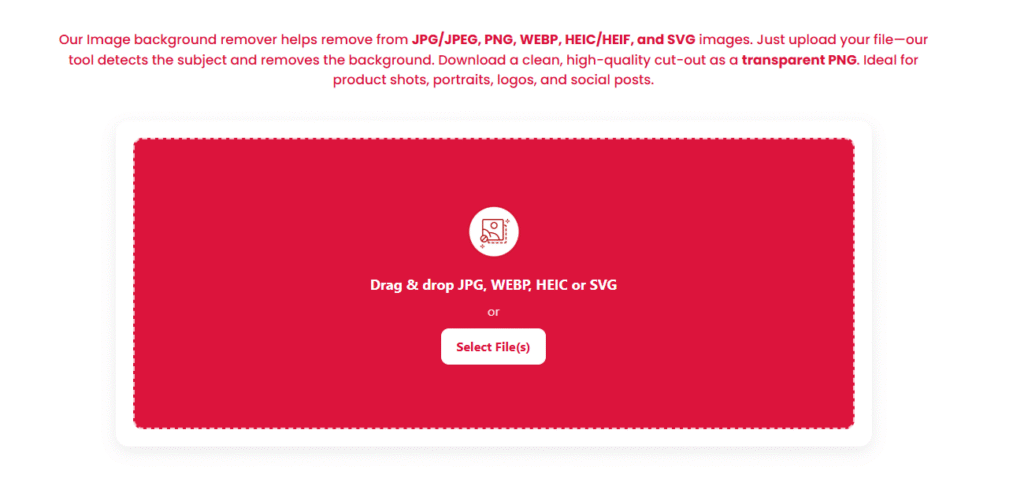
- Open PDFileHub → Remove Background.
- Upload your image (JPG, PNG, WEBP, HEIC, etc.).
- Choose auto removal. The tool detects the subject and returns a preview with a checkerboard (transparent) background.
- Refine edges (recommended):
- Keep/Remove brushes: Paint to restore missing areas (earrings, straps) or erase leftover background.
- Edge controls:
- Feather 0.5–1.5 px to soften harsh cut lines.
- Smooth 5–15 to remove jaggies on angular shapes.
- Contrast/Shift edge for crisper or tighter masks.
- Hair/soft edges: Use Refine Hair (or “Refine Edge”) and brush just along flyaways; preview on white and black backgrounds to judge spill.
- Background options (optional):
- Transparent (for PNG).
- Solid color (white, #F7F7F7, your brand color).
- Gradient or custom image if offered (for social posts/ads).
- Shadow & grounding (optional):
- Add a soft drop shadow (low opacity, blur 20–60 px) to avoid “floating sticker” look.
- For product shots, a subtle floor shadow or reflection gives realism.
- Export settings:
- PNG (transparent) for design reuse and logos/UI.
- JPG (no transparency) for photos on solid backgrounds; pick a background color first.
- WEBP for web performance (supports alpha).
- Size: Export at final display size or 2× for retina (then downscale where used).
- Color profile: sRGB for consistent web display.
- Download and drop the asset into your site, store, or design tool.
Mobile (iOS/Android)
- Open PDFileHub → Remove Background in your mobile browser.
- Upload from Photos/Files/Drive/iCloud.
- Run auto, then pinch-zoom to touch up with keep/remove brushes.
- Set background (transparent/solid/gradient).
- Export PNG (transparent) or JPG (solid color) → preview on both dark and light modes if possible.
Getting perfect edges (hair, fur, glass, and lace)
Hair & Fur
- After auto cutout, switch to Refine Hair and trace along the transition zone (not the whole hair area).
- Increase refine strength slowly; too much can erase detail.
Semi-Transparent Objects (glass/plastic)
- Use decontaminate colors (if available) to reduce background tint inside glass edges.
- Consider partial opacity instead of fully opaque cut; realism beats a hard edge.
Lace, Feathers, Fine Jewelry
- Zoom to 200–300%.
- Use small brush size and tap-paint around holes/links.
- Slight feather (0.5–1 px) prevents a “cookie-cutter” border.
Avoiding halos, color spill, and jaggies
Color Spill (green/blue from background)
- Apply edge de-spill or decontaminate to neutralize fringe hues.
- Manually brush a soft, low-opacity clone/paint on the edge in a design editor if needed.
Halos
- Reduce feather if the edge glows on dark backgrounds.
- Use Shift Edge inward by 0.5–2 px to tighten the mask.
Jaggies (stairsteps)
- Increase Smooth and keep export size near final display (over-upscaling exaggerates jaggies).
- For logos/line art, consider vector (SVG) instead of raster cutouts.
Shadows that look real (and when to keep originals)
A perfectly isolated subject can look “floaty.” Solutions:
- Soft drop shadow: Angle 90–120°, low opacity (10–25%), blur 20–60 px, offset a few pixels.
- Floor shadow: Elliptical, under the subject’s contact points, fading outwards.
- Keep a subtle original shadow: If the source shadow is soft and accurate, mask around it rather than removing it entirely.
Export formats, sizes, and naming
- PNG (transparent): best for marketplaces, web design, and compositing.
- WEBP (transparent or solid): smaller files for modern web; confirm your CMS support.
- JPG (solid): smallest for photos; choose a background color first.
- Dimensions:
- Product tiles: 1500–2000 px on the long edge for zoom.
- Social: follow platform specs (e.g., 1080×1080, 1920×1080).
- Print: compute inches × 300 DPI.
Filenames: brand-product-color-angle_2000.png or model-headshot_transparent.png. Avoid spaces/special characters.
Batch background removal (catalogs & events)
For large sets:
- Standardize input: similar angles, lighting, distance.
- Run auto removal in batch (if PDFileHub supports multi-upload).
- Spot-check diverse samples (dark hair on dark background, glass items, fine details).
- Apply global tweaks (edge shift, de-spill), then batch export.
- Keep a quality gate: randomly inspect 5–10% of outputs before publishing.
Accessibility & brand consistency
- Contrast: If adding text over the cutout, ensure readable contrast.
- Alt text: Provide descriptive alt text for product images on web.
- Brand backgrounds: Use a consistent neutral (e.g., #F5F7FA) to reduce color clash across categories.
Privacy notes (faces, plates, documents)
If images contain people or sensitive info (faces, license plates, screens with data), consider masking/blur in addition to background removal. Ensure you have rights/consent for public use.
Troubleshooting: quick fixes
Auto misses part of the subject
- Increase subject strength/sensitivity (if offered), or paint Keep over the missed area, then refine.
Edge looks crunchy on one background but fine on another
- Preview on white, black, and mid-gray. Adjust feather and shift edge until edges look natural across tones.
Color fringe inside hair
- Use de-spill; if still visible, add a subtle color overlay matching hair at low opacity.
Glass looks fake
- Don’t force 100% opacity; allow partial transparency. Consider adding a faint ground reflection or micro-shadow for realism.
Huge file sizes
- Export at final pixel dimensions, not camera original.
- Prefer WEBP (with alpha) for web; keep a PNG master for design.
“Upload failed” or timeouts
- Very large originals can stall; downscale longest edge to ~3000 px first.
- Try another browser or a private window if extensions conflict.
Quick recipes
Marketplace product on white
- Auto remove → Keep brush touch-ups.
- Background: #FFFFFF, add soft floor shadow.
- Export JPG 85%, 2000 px long edge.
Transparent logo for web
- Upload PNG/SVG raster → Auto remove (if needed).
- Tight Shift Edge (-1 px), Smooth 10–15.
- Export PNG (transparent) at 1× and 2× sizes.
Headshot for profile
- Auto remove → Refine hair around flyaways.
- Background: brand gradient or soft color; keep micro-shadow.
- Export PNG (transparent master) and JPG for platforms that require it.
Glass bottle product
- Auto remove → Manual refine around glass edges.
- Enable de-spill; keep partial opacity in glass areas.
- Add a soft floor shadow; export PNG/WebP.
Pre-publish checklist
- ✅ Clean edges at 100–200% zoom (no halos/jaggies)
- ✅ Hair/fur refined; de-spill applied where needed
- ✅ Natural grounding (shadow/reflection) if context demands
- ✅ Correct format (PNG with alpha, or JPG with intentional background)
- ✅ Right dimensions for destination; sRGB profile
- ✅ Sensible filename; file size optimized
Final thoughts
Great cutouts come from a simple, repeatable routine: auto remove → refine edges → handle tricky materials → add a natural shadow → export in the right format and size. With PDFileHub, you can do it quickly on desktop or mobile and keep quality consistent across campaigns. A few extra seconds on edge refinement and de-spill makes the difference between “looks edited” and “looks real”—and that’s what elevates your product pages, ads, and profiles.