

Sometimes one big PDF is a headache—portals cap file sizes, you only need a few chapters, or a client wants each section separately. Splitting a PDF the right way turns a bulky document into neat, shareable parts without losing quality or structure. This guide explains when and why to split, the three most useful methods—by page ranges, by bookmarks (chapters), and by file size—and walks you through a step-by-step workflow in PDFileHub on desktop and mobile. We’ll also cover naming, metadata, OCR, privacy, and troubleshooting.
Why split a PDF?
1) Shareability & upload limits.
Many portals (government, HR, legal e-filing, LMS) enforce max sizes like 5–10 MB. Splitting lets you submit in parts without over-compressing.
2) Focused delivery.
Clients rarely need everything. Sending just the relevant section reduces confusion and speeds reviews.
3) Organization & versioning.
Large reports become easier to navigate when chapters are their own files (e.g., Ch02_Methods.pdf), especially in collaborative projects.
4) Performance.
Mobile devices handle smaller PDFs more smoothly. Splitting prevents slow scrolling, rendering lag, or viewer crashes on older phones.
5) Archival and compliance.
Separating confidential appendices or PII-containing sections supports internal data-handling rules. You can encrypt only the sensitive parts instead of the whole report.
Method 1: Split by pages (ranges and patterns)
This is the most common method—perfect for extracting a few sections or producing equal “packets.”
Typical patterns
- Exact ranges: 1–5, 6–10, 11–14, etc.
- Every N pages: create consecutive chunks (e.g., every 25 pages).
- Custom picks: extract specific pages (1, 4–7, 22, 35–36).
Best for
- Pulling the executive summary or appendix.
- Uploading in fixed page batches to a portal.
- Creating course handouts by topic.
Quality tips
- Splitting doesn’t change quality—no recompression occurs unless you additionally optimize.
- If you plan to compress after splitting, do it per output file with a gentle preset (150–200 DPI for on-screen reading).
Method 2: Split by bookmarks (chapters/sections)
If your PDF was authored correctly (Word, LaTeX, InDesign export with headings), it may include bookmarks mapping to the table of contents. Splitting by bookmarks is the fastest way to create chapter files automatically.
How it works
- Select a bookmark level (e.g., level 1 = main chapters; level 2 = subsections).
- The tool creates one PDF per bookmark at that depth.
Best for
- Books, manuals, theses, legal briefs with clear TOCs.
- Reports where each chapter should be reviewed separately.
- Publishing individual sections on a website.
Quality tips
- If bookmarks are missing, consider adding them once in a desktop editor (you’ll thank yourself later).
- Preserve vector text; avoid workflows that rasterize pages when splitting.
Method 3: Split by size (target MB/limit)
Sometimes the requirement is purely mechanical: “Under 10 MB per upload.” Splitting by size divides the document into chunks that each stay below your chosen threshold.
How it works
- You set a target size (e.g., 8 MB to stay safe under a 10 MB cap).
- The tool groups pages sequentially and tests size as it goes, starting a new part whenever adding a page would exceed the threshold.
Best for
- Portals with strict limits.
- Emailing multiple parts without over-compressing.
- Very long scanned PDFs.
Quality tips
- Size-based splitting is blind to content; a few image-heavy pages may fill a part quickly. If visual continuity matters, use bookmark or range splitting instead.
Step-by-step in PDFileHub (desktop & mobile)
Desktop (Windows/Mac/Linux)
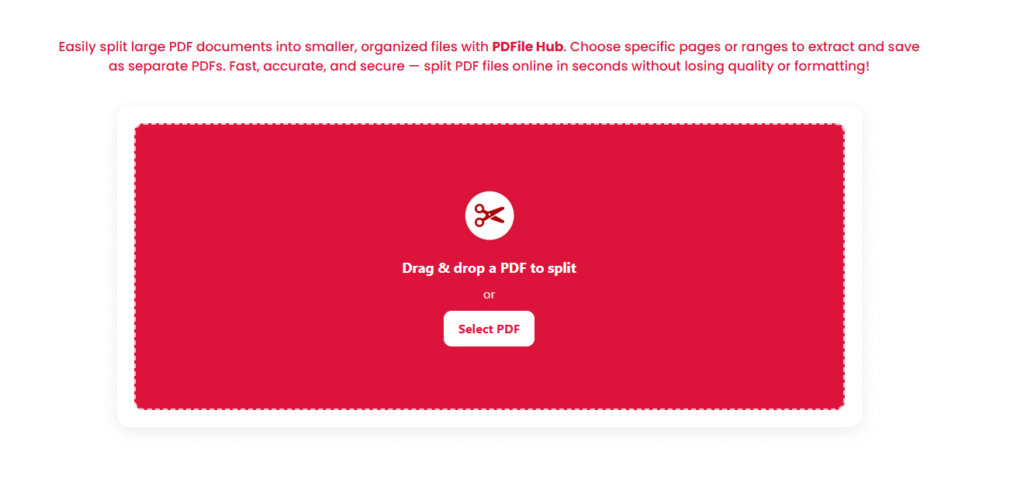
- Open PDFileHub → Split PDF.
Navigate to the Split tool. - Upload your PDF.
Drag and drop or Choose File. Wait for the preview (if available). - Choose your split mode.
- By Page Range:
- Enter ranges like
1-5, 6-10, 11-14or pick “Every N pages” (e.g., 25). - If you only need a few pages, use custom selection (e.g.,
2, 7-9, 20).
- Enter ranges like
- By Bookmarks:
- Select Bookmark level (Level 1 for chapters, Level 2 for subsections).
- Optionally keep the bookmark structure in each output.
- By Size:
- Enter the max file size per part (e.g.,
8 MB). - PDFileHub will auto-chunk sequentially under that cap.
- Enter the max file size per part (e.g.,
- By Page Range:
- Advanced options (optional).
- Preserve metadata: Keep author/title if needed.
- Retain/strip bookmarks: Useful when creating chapter PDFs.
- OCR for scans: If your original is image-only and text search matters, run OCR either before or after splitting (see OCR notes below).
- Naming pattern: Set output names like
Report_[part#].pdforChapter_[bookmark].pdf.
- Split.
Click Split. When processing finishes, you’ll see a batch listing or a zip download. - Review samples.
Open at least the first and last PDF to confirm page boundaries, orientation, and searchability (try Ctrl/Cmd+F on a known term). - Deliver or continue processing.
- Compress parts gently if size is still too large.
- Encrypt sensitive parts with passwords (share passwords separately).
- Rename clearly and file them in a logical folder.
Mobile (iOS/Android)
- Open PDFileHub in your browser and go to Split PDF.
- Upload the file from Files/Drive/iCloud/Photos (if exported to PDF).
- Choose mode (Ranges, Bookmarks, or Size) and provide the values.
- Run the split and download each part (or a zip). Preview each output in your phone’s PDF viewer to confirm page order and readability.
Smart naming & organization
Clear filenames save time for you and your recipients.
- Per range:
Study_2025_Pages_001-050.pdf,…_051-100.pdf - Per chapter (bookmarks):
Thesis_Ch01_Intro.pdf,Thesis_Ch02_Methods.pdf - Per size-based part:
Annual-Report_Part-01.pdf,…_Part-02.pdf
Also consider adding a cover sheet to each part when context matters (e.g., “This file contains Appendix B only”).
OCR, searchability, and accessibility
Scanned PDFs are often just images. If you need search, copy/paste, or screen reader support:
- Run OCR on the full document before splitting (one pass is faster) or on each output after splitting (useful if you only need text in some parts).
- Keep language settings accurate in OCR for better recognition.
- For accessibility, ensure meaningful document titles and alt text where possible (many online tools at least let you set the PDF Title).
Privacy & security: split safely
- HTTPS only—always check the lock icon and
https://. - Short retention—prefer tools that auto-delete files after a short time or process in-browser.
- Redact first—if a section contains PII/secret info you won’t send, truly redact it before splitting (use a real redaction tool that removes text, not just covers it).
- Encrypt outputs—apply passwords to parts with sensitive material; share passwords via a separate channel.
Troubleshooting: common issues and fixes
“Upload failed” or timeout
- Massive files and slow networks conflict. If possible, switch to stable Wi-Fi.
- If a hard cap exists, compress lightly or split by size first to reduce upload load.
- Try a different browser or a private window (extensions sometimes interfere).
Bookmarks option not appearing
- Your PDF may lack bookmarks. Generate them in a desktop editor using the table of contents or headings, then retry splitting by bookmarks. Alternatively, split by ranges that match your chapter starts.
Pages missing or out of order
- Check that ranges aren’t overlapping or skipping (e.g.,
1-5, 6-10, 11-14). - In size-based mode, understand that page boundaries follow size—not chapters. If logical boundaries matter, use bookmarks or manual ranges.
Output parts still too big
- After splitting, compress each file with a balanced preset.
- Downsample embedded images to ~150–200 DPI for on-screen reading, or 300 DPI if printing is required.
Text not searchable
- Your source is likely a scan. Run OCR on the outputs. If accuracy is poor, rescan at 300 DPI grayscale (or high-quality color) and retry.
Weird colors or garbled pages
- Some pages contain unusual color profiles/transparency. Re-export that page from the source app as standard RGB or print it to PDF, replace it, then split again.
Password-protected PDFs
- If you own the document and have rights, remove the password before uploading; many online tools can’t split encrypted files.
When to split vs. when to extract
- Split when you need multiple continuous parts (chapters, batches, size-bounded chunks).
- Extract when you only need a handful of pages; export those pages directly to a new PDF to keep things clean and avoid managing many unneeded files.
A quick pre-send checklist
- ✅ The right pages are in each output (spot-check first and last page).
- ✅ Orientation is correct; rotate any sideways pages.
- ✅ Filenames are clear and sortable (use chapter names or page ranges).
- ✅ Size meets the portal/email limit (compress if needed).
- ✅ Sensitive parts are redacted or password-protected as required.
- ✅ Originals are archived in a safe location.
Final thoughts
Splitting a PDF isn’t just slicing pages—it’s about producing useful, compliant, and readable outputs that match your workflow. Choose the method that fits your goal: page ranges for surgical control, bookmarks for instant chapter files, or size-based splitting for strict upload limits. With PDFileHub’s Split tool, the process is straightforward on desktop and mobile: upload → choose mode → set ranges/bookmark level/size → split → review. A few minutes of careful setup yields tidy parts that are easier to share, faster to load, and friendlier for your team and clients.