

Converting a Microsoft Word document to ODT (OpenDocument Text) sounds simple—save, download, done. But if you care about clean formatting, compatibility with open-source tools, privacy, and a professional finish, there’s a right way to do it. In this AdSense-friendly guide, you’ll learn what ODT is, why converting Word to ODT can be essential, and step-by-step instructions to convert Word to ODT directly on our website—on desktop or mobile. You’ll also get pro tips for fonts, lists, tables, accessibility, and a quick checklist before you hit send.
What Is ODT (OpenDocument Text)?
ODT stands for OpenDocument Text, the default text document format used by open-source office suites like LibreOffice Writer and Apache OpenOffice. It is an open standard maintained by OASIS, designed for long-term accessibility and broad interoperability.
Key characteristics of ODT:
- Open, vendor-neutral format: Doesn’t lock you into a single software ecosystem.
- Great for collaboration with LibreOffice/OpenOffice users: Teams that rely on open-source tools often require ODT.
- Good structure & styles: ODT preserves heading hierarchies, lists, and basic formatting well.
- Future-proofing: Because it’s a documented open standard, it’s well-suited for archives and public-sector use.
Why Convert Word (DOC/DOCX) to ODT?
Even though DOCX is widely supported, there are strong reasons to convert to ODT:
- Team or client requirements
Many governments, universities, and open-source teams ask for ODT files to ensure openness and long-term accessibility. If your recipients use LibreOffice daily, sending ODT avoids surprises. - Editing stability in LibreOffice/OpenOffice
While these suites open DOCX, edits are more stable when the document is native ODT. You’ll see fewer list, table, or spacing quirks in ongoing collaborations. - Open-standard compliance
If you’re following policies that encourage open formats, ODT is the correct choice. It aligns with procurement and archival guidelines in many organizations. - Cross-platform flexibility
ODT is supported across Windows, macOS, Linux, and various lightweight office tools—handy when collaborators don’t have Word installed. - Document longevity
ODT’s open specifications make it a safer bet for storing documents long-term without worrying about future software changes.
Word to ODT: When It’s the Right Call (and When It’s Not)
Use ODT when:
- Your reviewers use LibreOffice/OpenOffice.
- You need to meet open-format policies.
- You plan ongoing editing in open-source suites.
Stick to DOCX when:
- The entire workflow happens inside Microsoft Word.
- You rely on advanced Word-only features (complex SmartArt, some content controls) that may not translate perfectly.
Tip: If your final output is for reading only (not editing), export a PDF alongside ODT so viewers see an identical layout.
Step-by-Step: Convert Word to ODT on Our Website (Desktop & Mobile)
Our Word to ODT Converter runs in the browser, works on any modern device, and is designed to keep your formatting intact as much as possible. Here’s the exact process.
Desktop (Windows, macOS, Linux)
- Open the Word to ODT tool on our website.
From the homepage, click Tools → Word to ODT, or use the top navigation search and choose Word → ODT. - Upload your Word file.
Click Choose File (or drag & drop) and select your.docxor.doc. Multiple files? Convert them one by one so each gets a clean ODT. - Choose options (if shown).
- Preserve styles: Keeps Heading 1/2/3, lists, and basic table formatting.
- Keep images inline: Reduces wrap issues when moving into ODT editors.
- Language & hyphenation: Improves spellcheck and wrapping in LibreOffice.
- Convert.
Click Convert to ODT. The site processes your document and prepares an ODT download. - Download & verify.
Save the file with a clear name (e.g.,Project-Spec_v3_2025-10-17.odt). Open it in LibreOffice Writer to check headings, lists, tables, and images. - (Optional) Re-export if needed.
If you spot list or spacing quirks, tidy the layout in Word (or Writer), then convert again. Simple styles convert best.
Mobile (iPhone/iPad/Android)
- Open the tool in your mobile browser.
Go to Word → ODT on our website. - Upload from device or cloud.
Tap Choose File and select the DOC/DOCX from your phone storage, iCloud Drive, Google Drive, or Files app. - Convert & download.
Tap Convert to ODT. When the download prompts, save locally and Open in your preferred app (Collabora Office/LibreOffice mobile or a viewer). - Quick check.
Skim headings, lists, and tables. If you plan to edit heavily, move to a desktop with LibreOffice for the final pass.
How to Keep Formatting Clean During Conversion
1) Use real styles in Word
Apply Heading 1/2/3, Normal, and List styles—not manual bold/size. Structured docs map cleanly to ODT.
2) Keep lists simple
Avoid deeply nested custom numbering. If you need multi-level lists, use Word’s built-in multilevel list feature.
3) Tame tables
Stick to a single table style. Avoid nested tables and inconsistent cell padding.
4) Place images “In line with text”
Inline images reduce the chance of wrap/anchor shifts between DOCX → ODT.
5) Set page size early
Choose Letter or A4 in Word before formatting. Late page-size changes can reflow content.
6) Stick to common fonts
Use widely available fonts (Arial, Calibri, Times New Roman). If your brand font is essential, be ready to substitute it inside LibreOffice.
Privacy & Security Basics (Online Conversion)
- HTTPS only. Always check for the lock icon in your browser.
- Short retention. We automatically purge uploaded files after a short window (see our Privacy Policy on the tool page for details).
- Avoid uploading sensitive data unless policy allows external processors. For confidential materials, convert locally or share via approved channels.
- Keep the originals. Store your DOCX safely, so you can re-export or correct a layout later.
Troubleshooting: Common Word → ODT Issues (and Fixes)
Fonts changed or spacing shifted
- Switch to system-safe fonts or install missing fonts where the ODT will be edited.
- Reduce manual spacing (extra spaces or empty paragraphs). Use paragraph spacing and styles.
Lists renumber weirdly
- Reapply a simple list style in Word.
- Keep numbering consistent; avoid mixing bullet/number styles in one list.
Images move or overlap text
- Set images to In line with text.
- Avoid complex text wraps and floating objects before conversion.
Header/footer looks different
- Keep headers/footers simple (page numbers, titles, logo).
- Re-set margins and spacing in LibreOffice if needed.
TOC or cross-references look wrong
- In LibreOffice Writer, Update All fields/indexes to rebuild the TOC from headings.
Track Changes/Comments
- They generally carry over, but behaviors vary by editor version. For high-stakes reviews, test a small sample first.
Alternative Ways to Convert (If You’re Not Using Our Site)
- Microsoft Word (desktop):
File → Save As → OpenDocument Text (.odt) - LibreOffice Writer: Open DOCX →
File → Save As → ODT(best fidelity for teams using LibreOffice) - Google Docs (web): Open DOCX →
File → Download → ODT(check for font substitution)
Even when converting elsewhere, it’s smart to open the final ODT in LibreOffice Writer for a visual pass before you share.
SEO Tips (If You’re Publishing ODT Downloads)
- Use natural keywords like “Word to ODT”, “convert DOCX to ODT”, “OpenDocument Text converter”.
- Add internal links to related posts (e.g., ODT to DOCX, OpenDocument vs DOCX).
- Include an FAQ section and consider structured data (schema) to enhance search snippets.
Quick Pre-Send Checklist
- ✅ Opens cleanly in LibreOffice Writer
- ✅ Headings, lists, tables look correct
- ✅ Page size (Letter/A4) set properly
- ✅ Images are aligned/inline
- ✅ TOC/fields updated
- ✅ Clear filename with date/version
- ✅ Content reviewed for sensitive data
FAQs: Word to ODT
1) Will my formatting stay exactly the same?
Mostly—if you use clean styles, simple lists, and inline images. Very complex Word-only features may need light touch-ups after conversion.
2) Is ODT better than DOCX?
It depends. ODT is ideal for open-source workflows and policy compliance. DOCX is great inside Microsoft 365 environments. Choose based on your team’s tools.
3) Can I convert large documents?
Yes. For very large files, give the page a moment to process. If you see timeouts, split the document or simplify large embedded images.
4) Are comments and tracked changes preserved?
Generally, yes—but test a sample when the review workflow is critical. Different editor versions can behave slightly differently.
5) Is online conversion safe?
We use HTTPS and short retention. For highly confidential files, follow your organization’s policy and consider local conversion.
How to Convert Word to ODT on Our Website (Step-By-Step Summary)
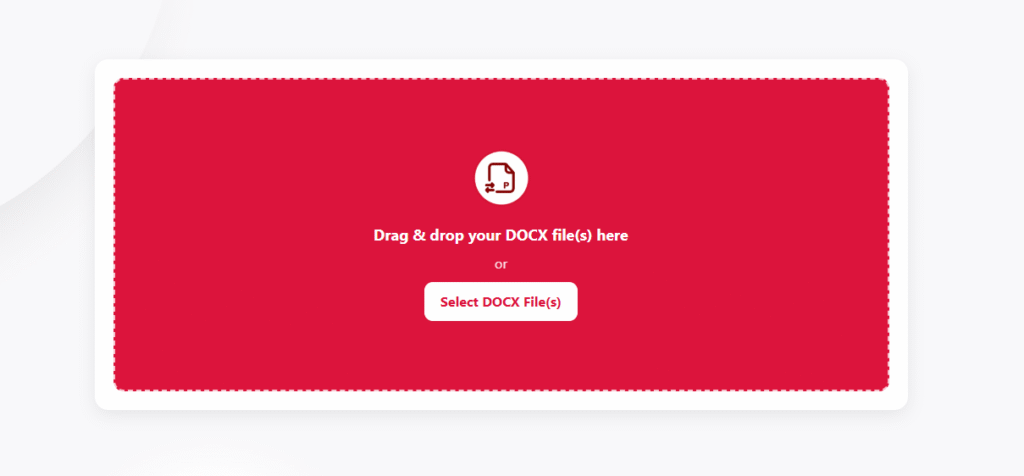
- Visit Word to ODT on our site.
- Upload your DOC or DOCX.
- Select Preserve styles and Inline images (recommended).
- Click Convert to ODT.
- Download and open in LibreOffice Writer to verify headings, lists, tables, and images.
- Rename clearly (e.g.,
Client-Proposal_v2_2025-10-17.odt) and share.
Suggested Title (SEO-Friendly)
Convert Word to ODT (OpenDocument) Online — Safe, Accurate & Free | Step-by-Step Guide (2025)
Optional: FAQ Schema (Copy-Paste)
<script type="application/ld+json">
{
  "@context":"https://schema.org",
  "@type":"FAQPage",
  "mainEntity":[
    {
      "@type":"Question",
      "name":"What is ODT and why convert from Word?",
      "acceptedAnswer":{
        "@type":"Answer",
        "text":"ODT (OpenDocument Text) is an open-standard format used by LibreOffice/OpenOffice. Converting from Word to ODT improves compatibility with open-source tools, aligns with open-format policies, and stabilizes editing for teams that work in LibreOffice."
      }
    },
    {
      "@type":"Question",
      "name":"How do I convert Word to ODT on this website?",
      "acceptedAnswer":{
        "@type":"Answer",
        "text":"Open the Word → ODT tool, upload your DOC/DOCX, choose options like Preserve Styles, click Convert to ODT, then download and review the file in LibreOffice Writer."
      }
    },
    {
      "@type":"Question",
      "name":"Will my formatting stay the same after conversion?",
      "acceptedAnswer":{
        "@type":"Answer",
        "text":"Most layouts convert cleanly when you use real heading styles, simple lists, inline images, and common fonts. Complex Word-only features may need light adjustments post-conversion."
      }
    }
  ]
}
</script>
Final Thoughts
ODT is a reliable, open, and collaboration-friendly format—especially for teams working in LibreOffice/OpenOffice or following open-standard policies. If you keep your Word document clean (styles, simple lists, inline images) and convert using the steps above, you’ll get an ODT that’s easy to edit, consistent across platforms, and ready to share. Use our website’s Word → ODT tool for a fast, secure conversion, then run the quick checklist. Your recipients—and your future self—will thank you.