

Converting Word to PDF sounds simple—open a .docx, hit “Export,” and call it a day. In practice, you want the result to be clean, searchable, and share-ready: pixel-perfect layout, clickable links, proper page size, small file size, and—crucially—no privacy surprises. This guide walks you through safe online conversion (desktop and mobile), how to use PDFileHub step-by-step, privacy and security considerations, common pitfalls, and a short checklist so your final PDF looks professional every time.
Why convert Word to PDF—and what “safe” really means
People convert Word to PDF to lock formatting for resumes, proposals, invoices, school assignments, and downloadable guides. The goal is to produce a single, easy-to-share file that preserves layout and text across devices. “Safe,” in this context, covers three things:
Data protection. Your files shouldn’t be exposed to anyone else. When you use an online tool, look for transport encryption (HTTPS), short retention/deletion policies, and (where possible) in-browser processing.
Document integrity. The output should keep text selectable, preserve fonts, hyperlinks, and headings/bookmarks when possible, and avoid unwanted image recompression that ruins sharpness.
Practical compliance. If your document contains personal or confidential data, follow your organization’s policy (e.g., consent, redaction, encryption) before uploading or sharing.
Safety first: privacy, security, and policy basics
Use HTTPS. Make sure the converter’s URL starts with https:// and your browser shows a secure connection. This protects uploads and downloads in transit.
Prefer minimal retention. Good tools either process files in your browser or auto-delete uploads shortly after conversion. Check the Privacy Policy for retention windows and whether files are used for anything besides your task (they shouldn’t be).
Handle sensitive content responsibly. If the doc contains personal identifiers, contracts, or financial data, consider:
- Redaction first. Redact sensitive sections in a local PDF editor before conversion. (Don’t just draw a black box—use a true redaction tool that removes underlying text.)
- Encrypt after export. If recipients should have controlled access, apply a strong password when you’re done and share the password via a separate channel.
- Follow your rules. Some workplaces disallow external processing; in those cases use an approved internal tool or local export.
- Keep originals. Always store the .docx source in case you need to re-export with different settings.
Step-by-step: convert Word to PDF in PDFileHub (desktop & mobile)
Desktop (Windows/Mac/Linux)
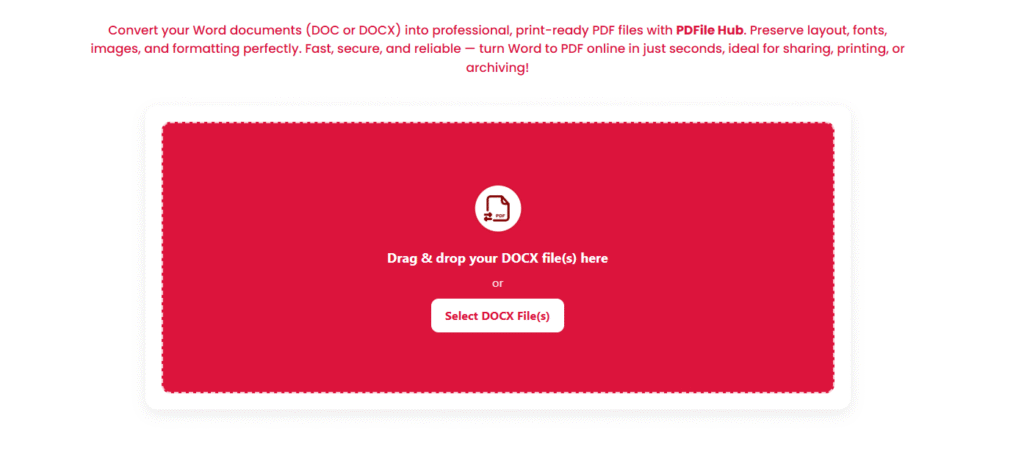
Open PDFileHub → Word to PDF.
Navigate to the Word-to-PDF tool.
Add your file(s).
Drag and drop your .doc or .docx file, or click Choose Files. If you have multiple documents that will become separate PDFs, upload them together; if you intend to merge first, combine them into one Word file or use PDFileHub’s Merge PDF after export.
Set options (if available).
- Output quality: Choose “Standard” for sharp text and images (great for print or sharing).
- Detect links & headings: Preserve hyperlinks and structure for accessibility and navigation.
- Page size & margins: Confirm the correct size (Letter/A4) to prevent awkward page breaks.
Convert.
Click Convert. PDFileHub processes your document and generates a PDF.
Download and review.
Save with a clear name like Client-Proposal_2025-10-17.pdf. Open and check:
- Headings, spacing, and line breaks match your original.
- Links are clickable; the table of contents works if you had one.
- Page size, orientation, and margins are correct.
Optional: compress or protect.
If the file is too big, run Compress PDF with a balanced setting (target ~150–200 DPI for on-screen reading). If it’s private, apply Password Protect to the final PDF.
Mobile (iOS/Android)
Open PDFileHub in your mobile browser → Word to PDF.
Upload from Files/Drive/iCloud.
Convert and preview.
Tap Convert, then open the result in your phone’s PDF viewer to verify layout. If you’re uploading to a portal with size limits, use Compress PDF and pick a medium preset.
Pro tip (iOS & Android apps): If you already have the Microsoft Word app, you can export directly to PDF via Share/Export → PDF, then (optionally) run the file through PDFileHub to compress or protect.
Formatting like a pro: layout, fonts, and links
Start with styles, not manual formatting.
Use Word’s built-in Heading 1/2/3, Normal, and List styles. This improves consistency and helps converters preserve structure/bookmarks.
Embed or standardize fonts.
Stick to common system fonts (Calibri, Arial, Times New Roman) for best portability. If your brand demands a custom font, ensure it’s embedded at export (Word desktop supports font embedding; cloud tools may substitute).
Lock page size early.
Set Letter (8.5″×11″) or A4 (210×297mm) in Layout → Size before you format. Changing size at the end can shift everything.
Keep hyperlinks clean.
Use descriptive link text (“View price list”) instead of “Click here.” Confirm links remain clickable in the exported PDF.
Images and charts.
Insert high-quality originals (PNG/SVG for line art, high-quality JPEG/PNG for photos). Avoid pasting screenshots into Word when clarity matters—insert the original images instead.
Accessibility and SEO-friendliness for PDFs
Alt text.
Right-click images → Edit Alt Text in Word so assistive tech can describe visuals.
Logical reading order.
Flow content top-to-bottom, left-to-right; avoid floating text boxes when possible.
Headings & bookmarks.
Using real headings enables bookmarks in many converters—handy for reports and e-books.
Tagged PDF.
If your tool offers “document structure tags,” enable it to improve screen-reader support.
Ensuring readability and file size sanity
DPI targets.
- 150–200 DPI for on-screen reading (presentations, web downloads).
- 300 DPI for office printing or image-heavy brochures.
Compression choices.
- Photos: lossy (JPEG/JPEG2000) is fine at moderate levels.
- Diagrams/line art: prefer lossless to avoid halos or blurring.
Avoid double compression.
If your images are already optimized, choose a “light” optimization. Heavy recompression can make logos look muddy.
Test at normal zoom.
View at 100–125% on a laptop. If text is crisp and images are clean, you’re set.
Troubleshooting common Word→PDF issues
Fonts changed or text reflows.
Install the missing fonts or switch to common system fonts. On Windows Word, enable File → Options → Save → Embed fonts in the file before export. Re-convert.
Images look soft or pixelated.
Replace pasted screenshots with higher-resolution originals. Export with “Standard” (not “Minimum”) quality, or compress gently after conversion.
Hyperlinks not clickable.
Export via Save/Export to PDF, not “Print to PDF,” which can flatten interactivity. In Google Docs, use File → Download → PDF.
Large file size.
Compress images in Word (Picture Format → Compress) before export, or use PDFileHub’s Compress PDF with a balanced profile.
Tables misaligned.
Simplify complex table styles; avoid mixed cell paddings and nested tables. Re-export.
Special characters or RTL text broken.
Ensure the font supports your language/script. Reflow with a Unicode-friendly font (e.g., Noto families) and export again.
Scanned pages not searchable.
If your document includes scans, run OCR (optical character recognition) after conversion to make text selectable.
Headers/footers or page numbers missing.
Confirm they’re defined in Word’s header/footer area (not drawn shapes). Re-export to PDF.
Word vs. “Print to PDF” vs. online converters
- Word’s built-in Export/Save as PDF: Best for preserving links, headings, and fonts; ideal when you have the desktop app.
- Print to PDF (Win/Mac): Fast but may flatten links/bookmarks; use when you just need a visual snapshot.
- Online converters (like PDFileHub): Cross-platform, no install, great for mobile and Chromebooks; choose providers with clear deletion and encryption policies.
Security add-ons: passwords, permissions, and sharing
After conversion, you might want to control access:
- Password-protect the PDF with a strong user password if it contains private info.
- Set permissions (restrict editing/printing) to deter casual tampering. Note these are deterrents, not absolute barriers.
- Share smartly: send via a secure channel, and never include the password in the same email or chat thread—use a separate channel (SMS/call).
Step-by-step “local export” (when you have Microsoft Word)
Windows/Mac (Microsoft 365 or Word 2019+)
- File → Save As (or Export on Mac).
- Choose PDF as the file format.
- Click Options (Windows) and enable:
- Standard (publishing online and printing) for best quality.
- Document structure tags for accessibility (bookmarks, screen readers).
- Save, then open the PDF and validate links, page size, and images.
Google Docs workflow (free, cloud)
- Upload the .docx to Google Drive and open in Google Docs.
- Fix any spacing/font substitution issues.
- File → Download → PDF Document (.pdf).
- If needed, run through PDFileHub for compression/protection.
Naming, versioning, and delivery
Smart filenames.
Use human-readable names with dates or versions, e.g., Q4-Marketing-Plan_v3_2025-10-17.pdf. This lowers the chance of sending the wrong draft.
Version control.
Keep a clean “FINAL” folder; archive prior versions. When collaborating, note the version in the email or message (“Attaching v3 for approval”).
Portal uploads.
If a site enforces size limits (e.g., 10–20 MB), compress before uploading to avoid retries.
A quick pre-send checklist
- Name it clearly:
Resume_JD-Product-Manager_2025-10-17.pdf - Open and scan the entire PDF (not just page 1)
- Confirm links work and page numbers/readability are intact
- Check size meets the email/portal limit
- Protect or redact if sensitive
- Store the original .docx safely for future edits
Final thoughts
Converting Word to PDF can be fast, safe, and professional when you follow a few best practices: export via a secure tool, preserve structure and fonts, optimize images sensibly, and perform a quick quality check before sending. With PDFileHub’s Word to PDF tool, the process boils down to upload → set options → convert → verify → (optional) compress/protect. Do that consistently and you’ll deliver polished PDFs that look great on any device, are easy to share, and won’t surprise you—or your recipients—with broken links, bloated sizes, or privacy risks.